
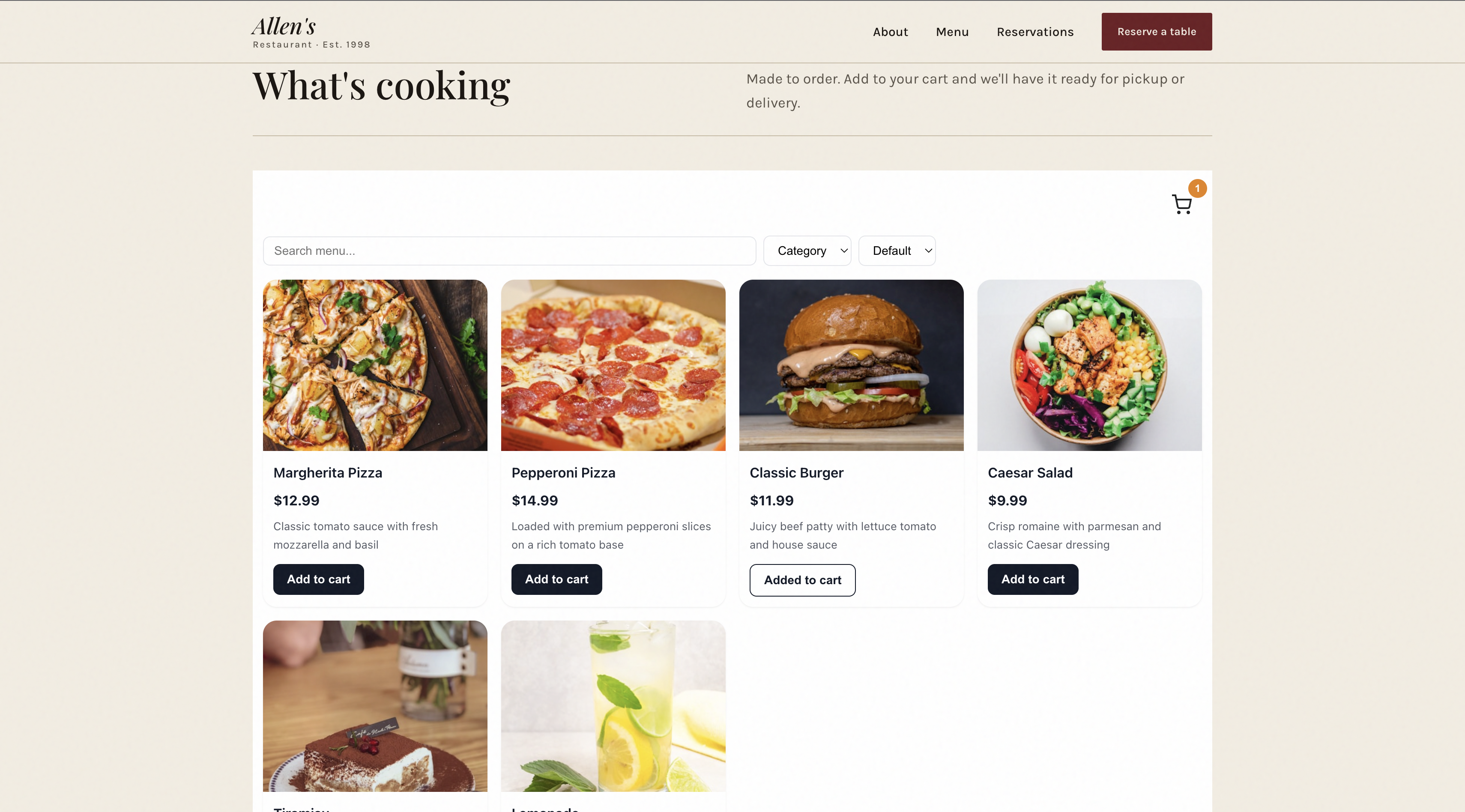
Most restaurant websites have the same problem.
The menu is hardcoded in HTML. Every time a price changes or a dish gets added, someone has to edit the website. If the owner does not know how to code, they call their developer. The developer charges for the update. The menu is always slightly out of date.
This tutorial shows you a different approach. You build a complete restaurant website with plain HTML. The menu section pulls live data from a Google Sheet. When the owner changes a price or adds a new dish, the website updates automatically. No developer needed. No rebuild. No redeploy.
Here is what you will build:
- A complete restaurant website in plain HTML and CSS
- A live menu section powered by a Google Sheet
- Search and filter by category
- Cart and online ordering built in
- Automatic order email to the restaurant owner
- Hosted on any static platform for free
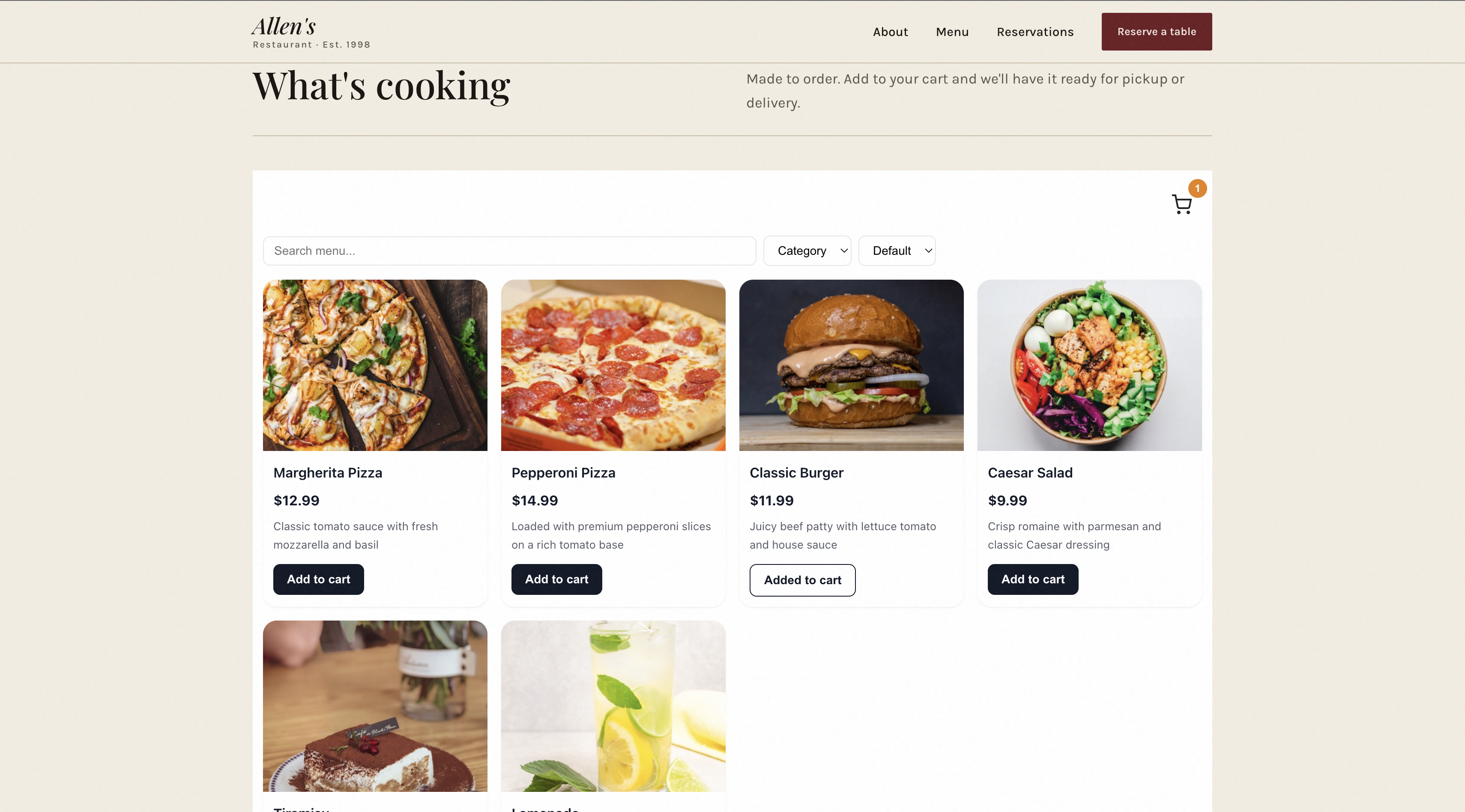
The menu at the bottom of this page is a live demo. It is pulling real data from a Google Sheet right now.
What You Will Need
Before starting, make sure you have:
- A text editor (VS Code or any editor)
- A Google account
- A free Sheetrocket account
- Basic HTML knowledge
No server. No backend. No database.
The Architecture
Here is how the whole thing works:
Restaurant owner edits Google Sheet
          |
          v
Sheetrocket reads the sheet via API
          |
          v
Widget script fetches the latest data
          |
          v
Menu renders on the HTML page automatically
          |
          v
Customer adds to cart and places order
          |
          v
Restaurant owner receives order email
The restaurant owner never touches the website. They manage everything in a spreadsheet they already know how to use.
Step 1: Set Up Your Google Sheet
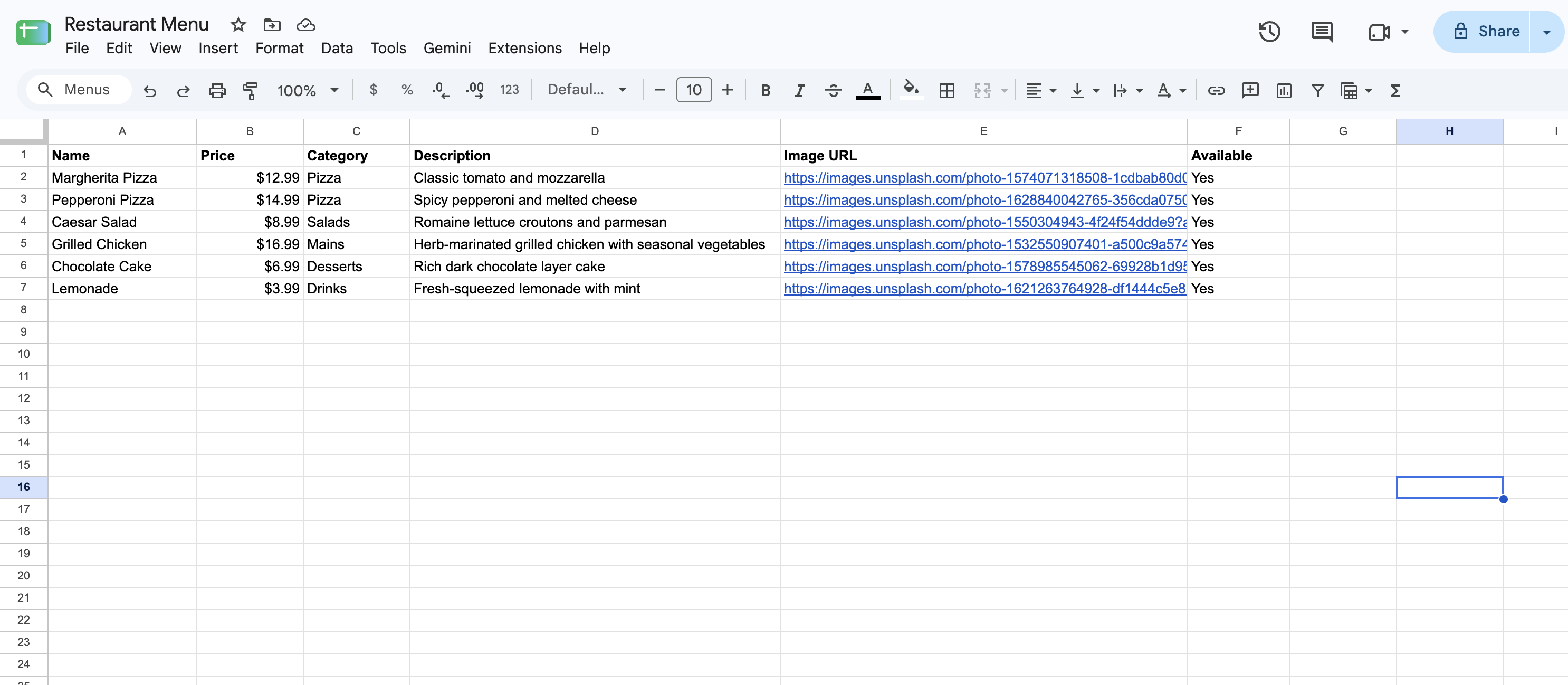
Start with your menu data. Create a new Google Sheet with the following columns:
Name | Price | Category | Description | Image URL | Available
Here is a sample menu to get you started:
Name              | Price  | Category | Description                    | Image URL | Available
Margherita Pizza  | $12.99 | Pizza    | Classic tomato and mozzarella  | https://... | Yes
Pepperoni Pizza   | $14.99 | Pizza    | Spicy pepperoni and cheese     | https://... | Yes
Caesar Salad      | $8.99  | Salads   | Romaine, croutons, parmesan    | https://... | Yes
Grilled Chicken   | $16.99 | Mains    | Herb marinated grilled chicken | https://... | Yes
Chocolate Cake    | $6.99  | Desserts | Rich dark chocolate layers     | https://... | Yes
Lemonade          | $3.99  | Drinks   | Fresh squeezed with mint       | https://... | Yes
You can use any image URLs from Unsplash, your own
Google Drive, or any image hosting service. For
Unsplash images, add ?w=400&h=300&fit=crop to
the end of the URL to get a consistent size.
Keep the column names exactly as shown. Sheetrocket will use them for automatic mapping.
Step 2: Create Your SheetRocket Account
Go to sheetrocket.com and sign up for free. No credit card required.
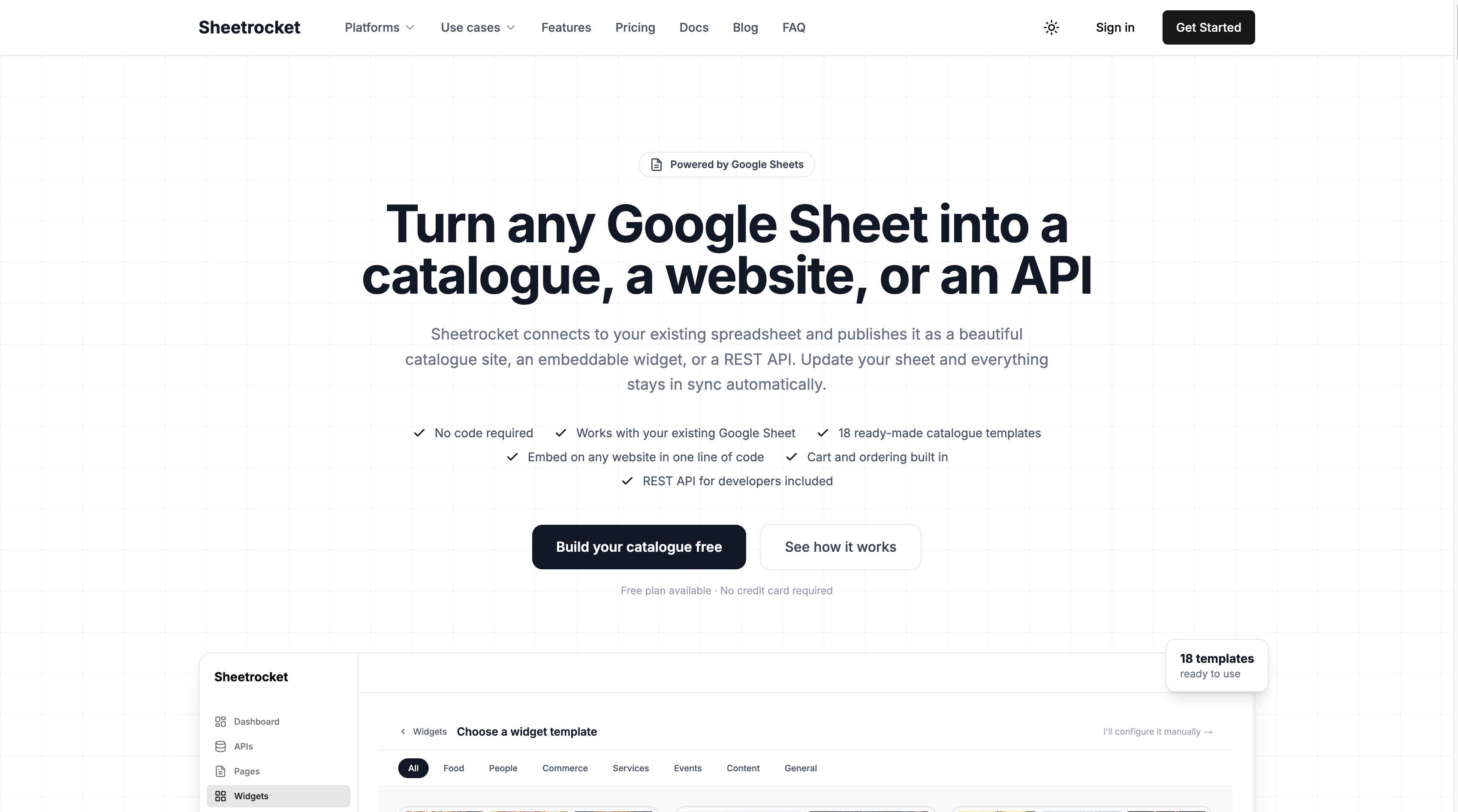
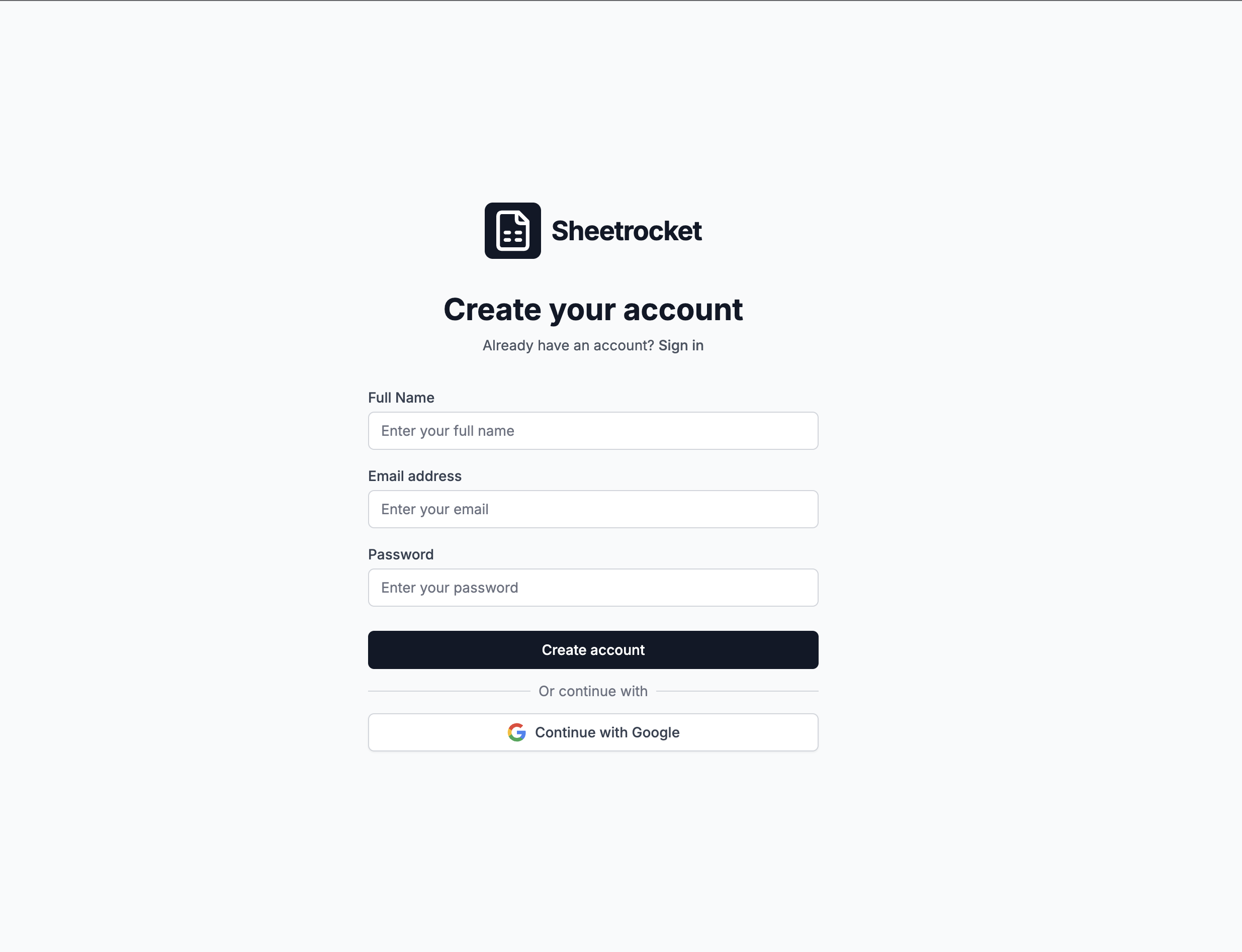
Once you are logged in, you will see your dashboard. This is where you create and manage your widgets, sites, and APIs.
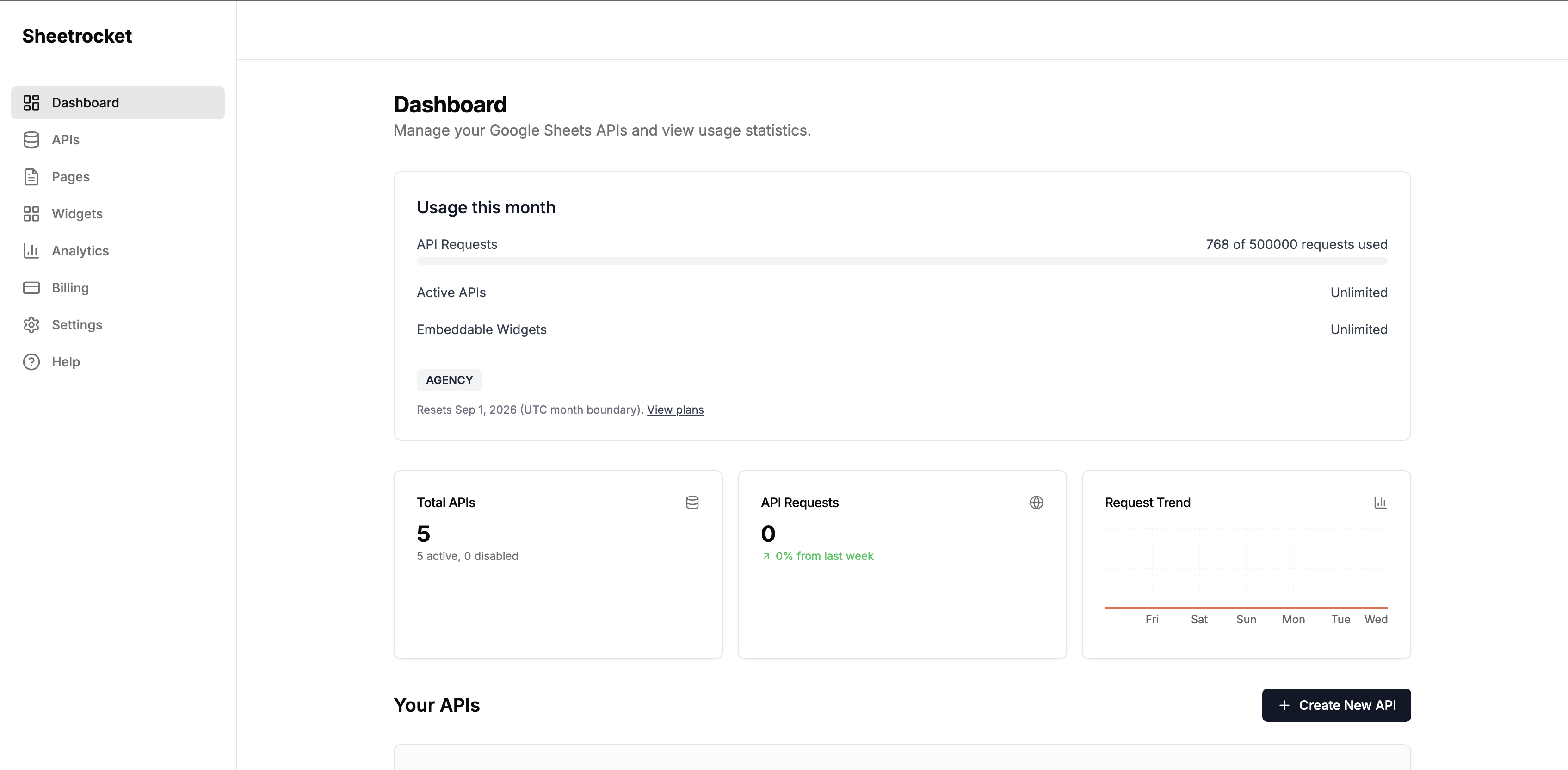
Step 3: Create a Menu Widget
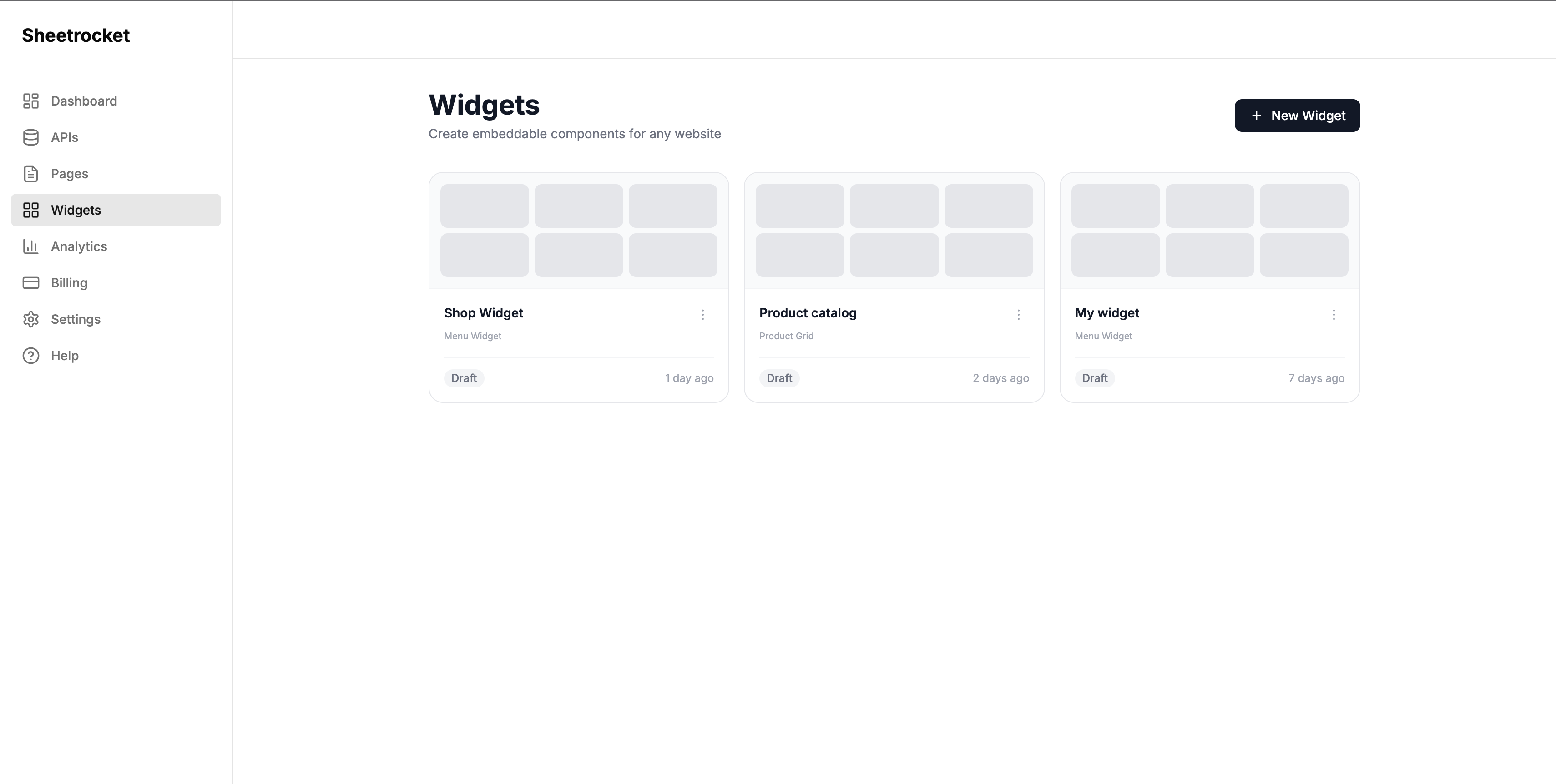
Click Widgets in the left sidebar. Then click Create widget.
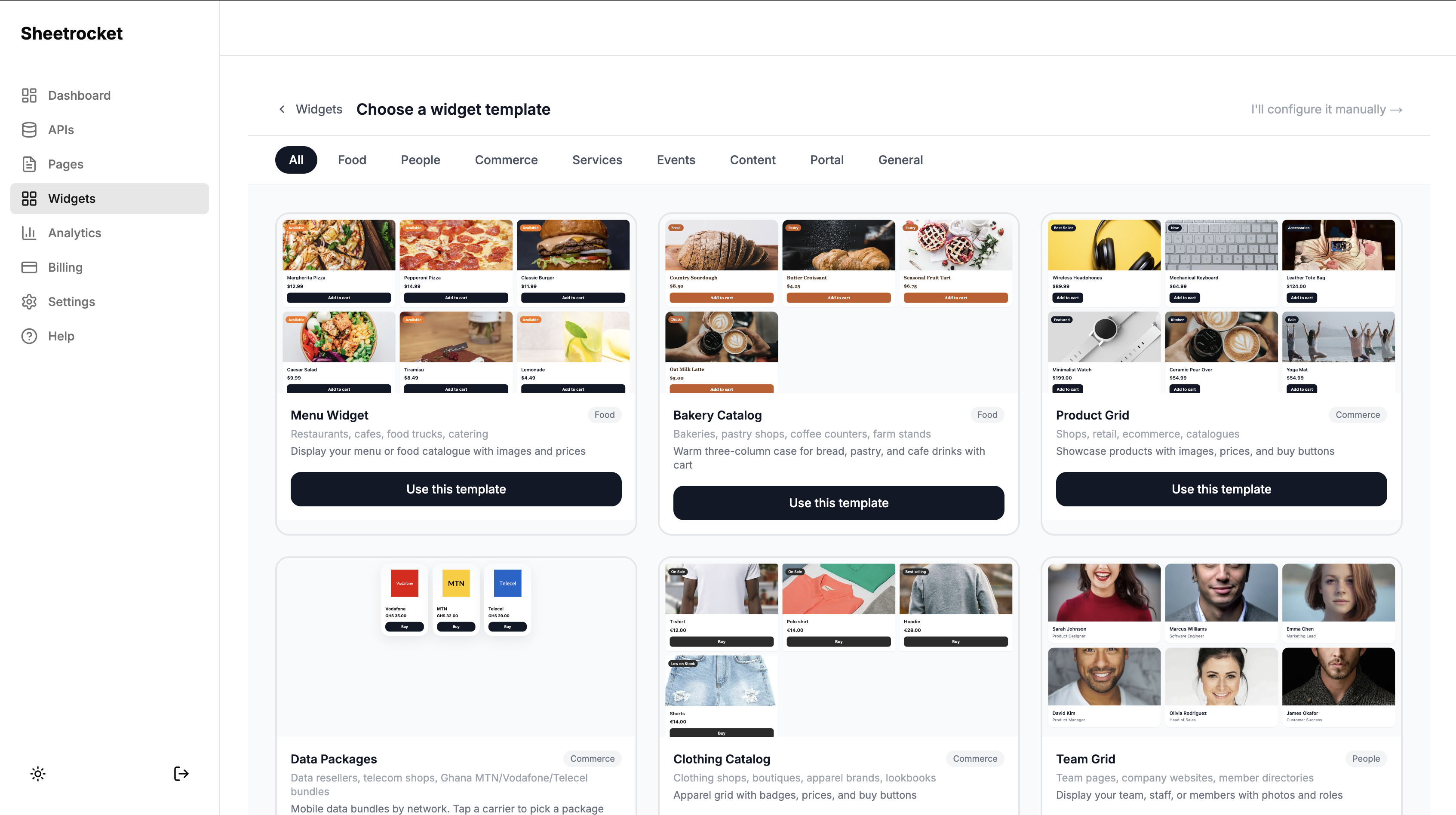
You will see a gallery of widget templates. Click on Menu Widget.
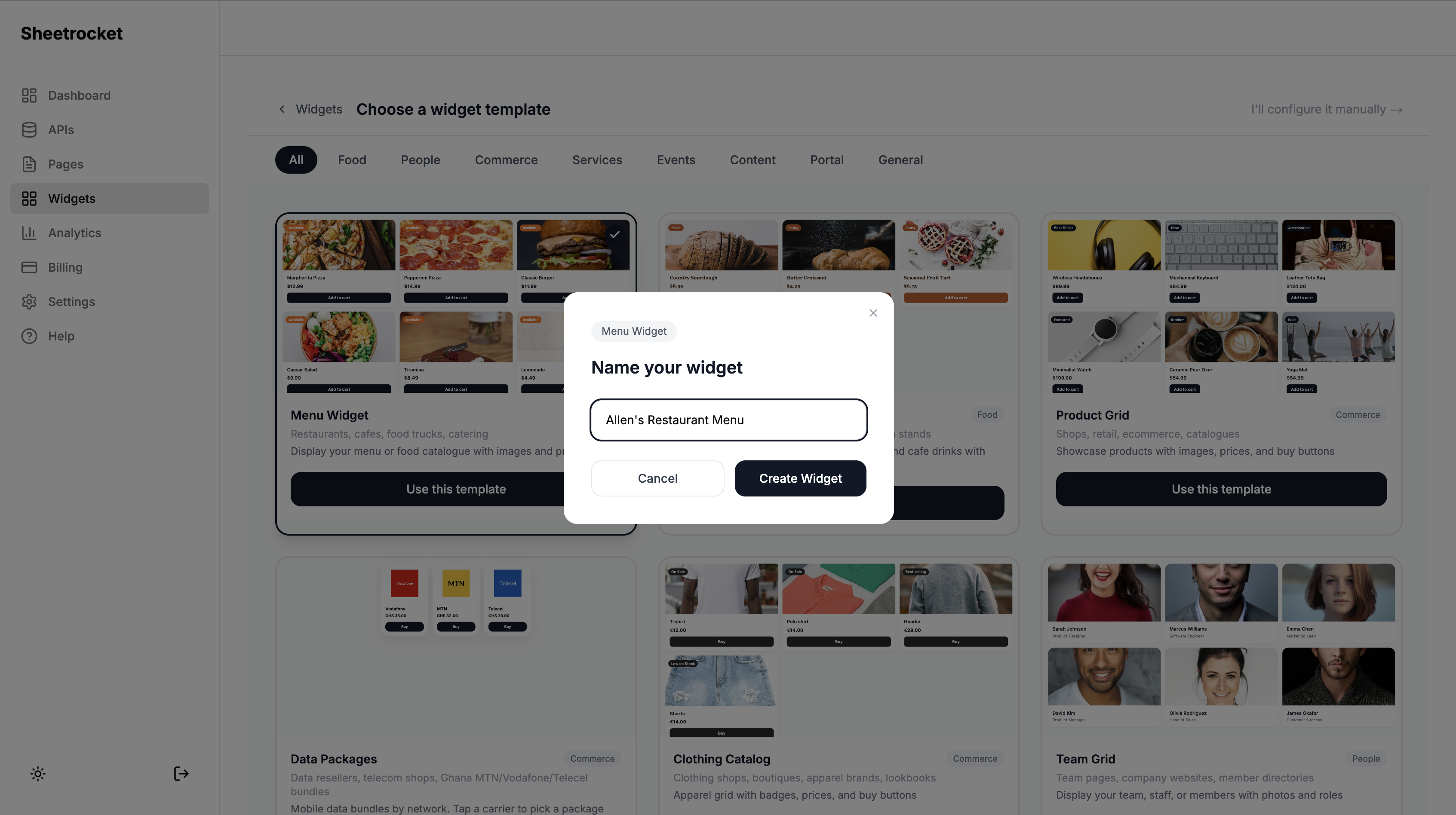
Give your widget a name. Something like "Allen's Restaurant Menu" works. Click Create.
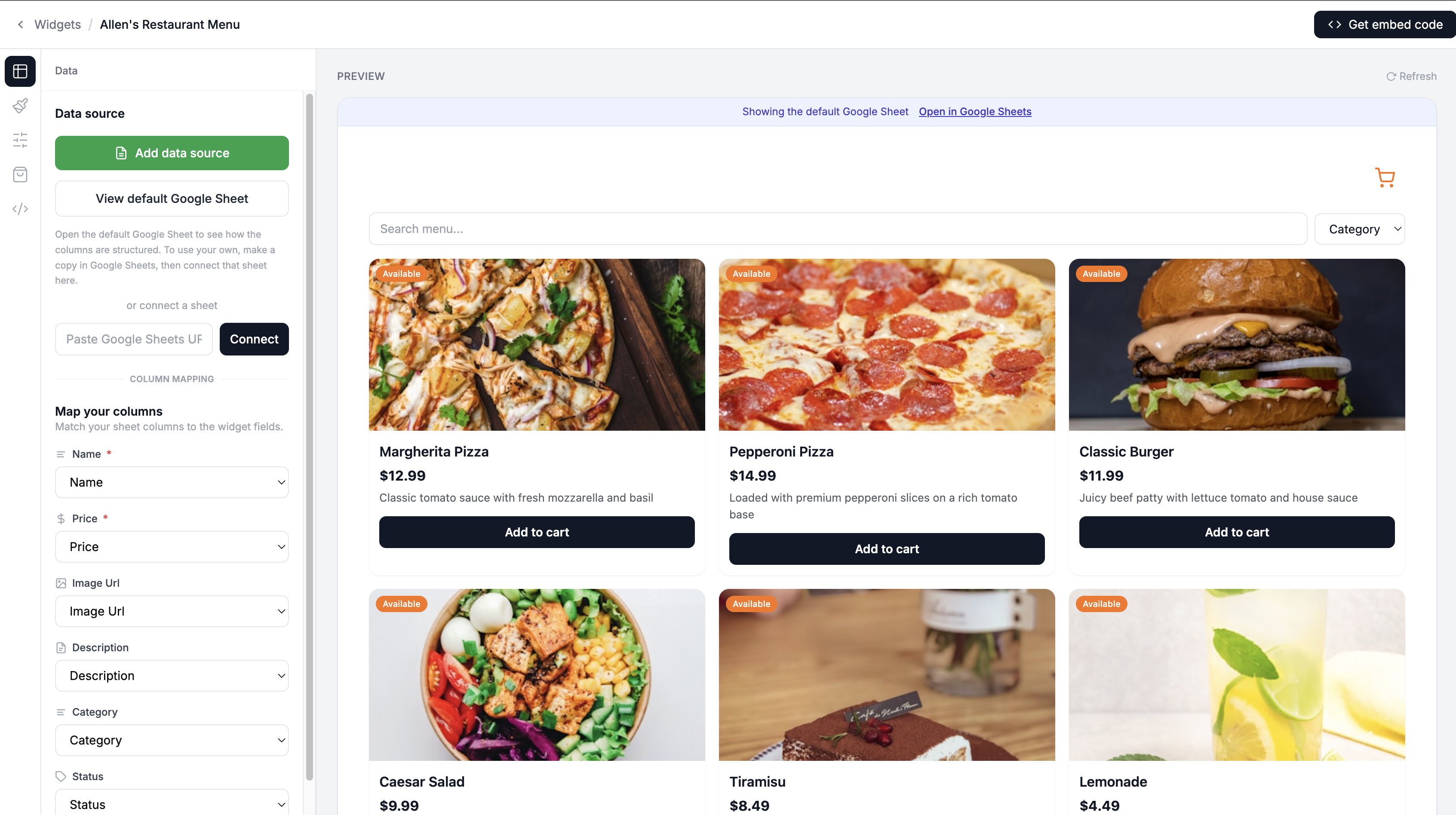
You will be taken to the widget builder. On the right side, you will see a live preview of your widget with sample data. On the left side, you have three tabs: Data, Design, and Filters.
Step 4: Connect Your Google Sheet
Click the Data tab in the left panel.
You will see two things: a data source section and the column mapping fields below it. The column mapping fields are always visible so you can see exactly what columns your sheet needs before connecting.
Sheetrocket uses a service account to read your Google Sheet securely. You need to share your sheet with the SheetRocket service account email.
Find the service account email in the Data tab. It looks like this:
sheetrocket@sheetrocket-app.iam.gserviceaccount.com
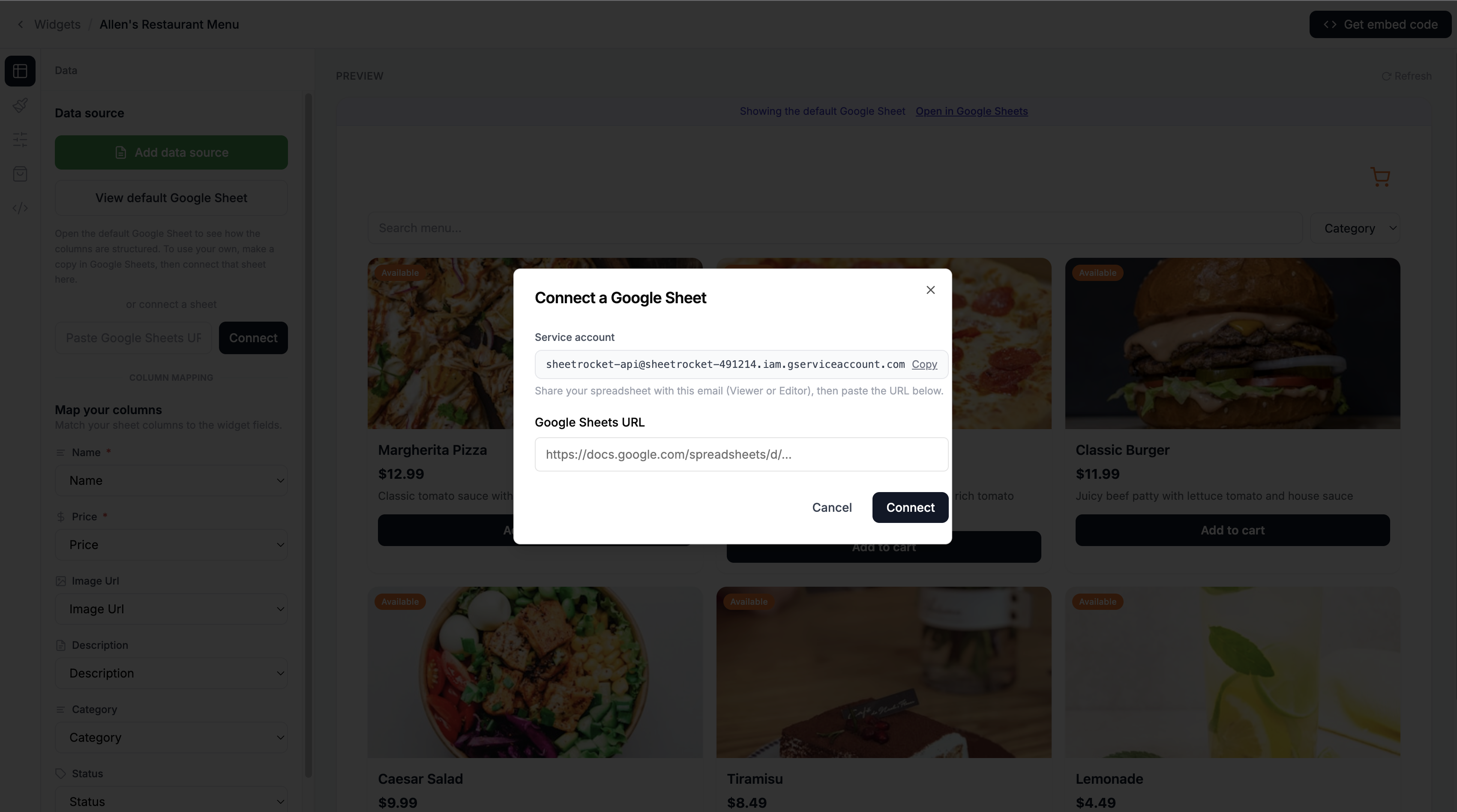
Copy that email address. Now go back to your Google Sheet.
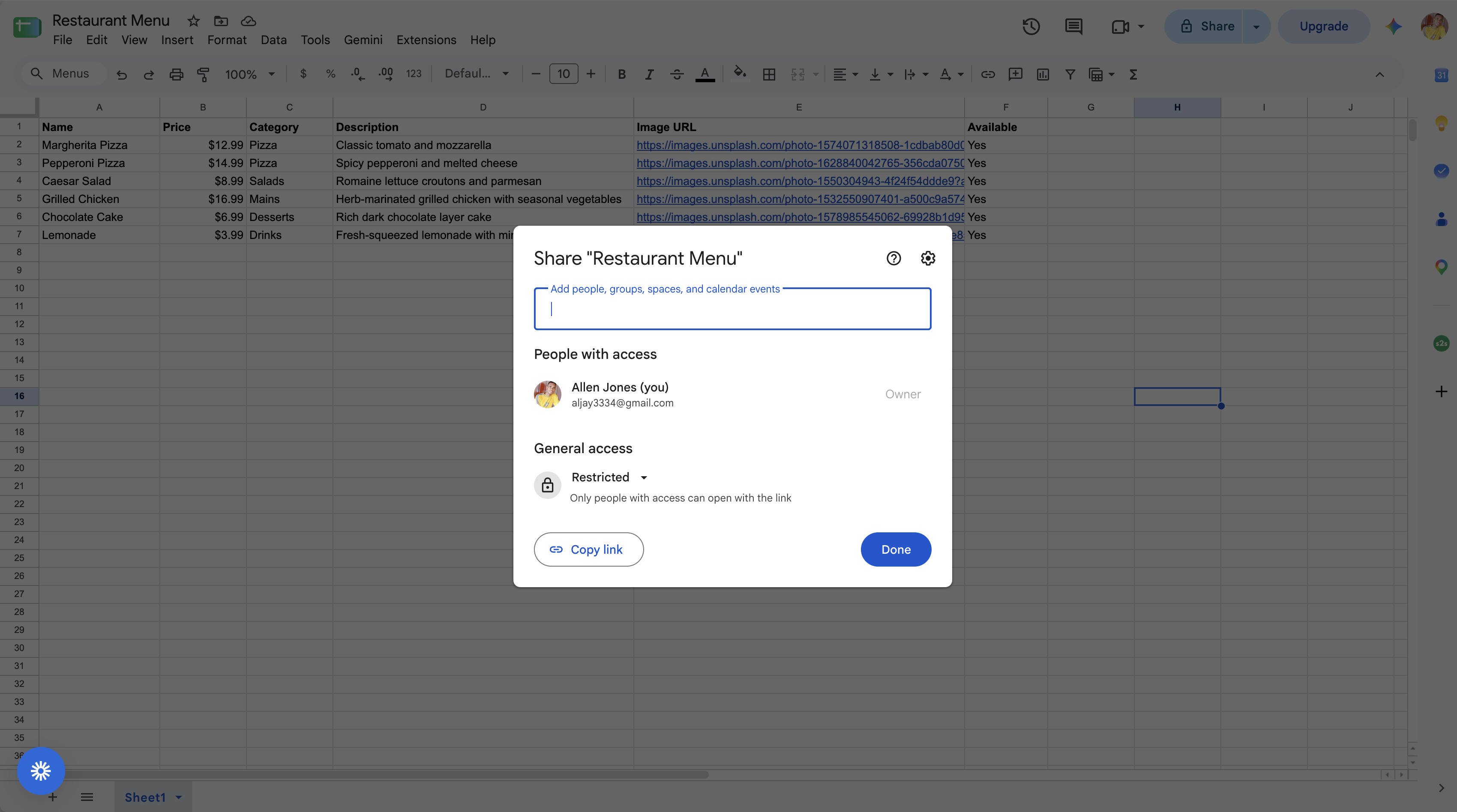
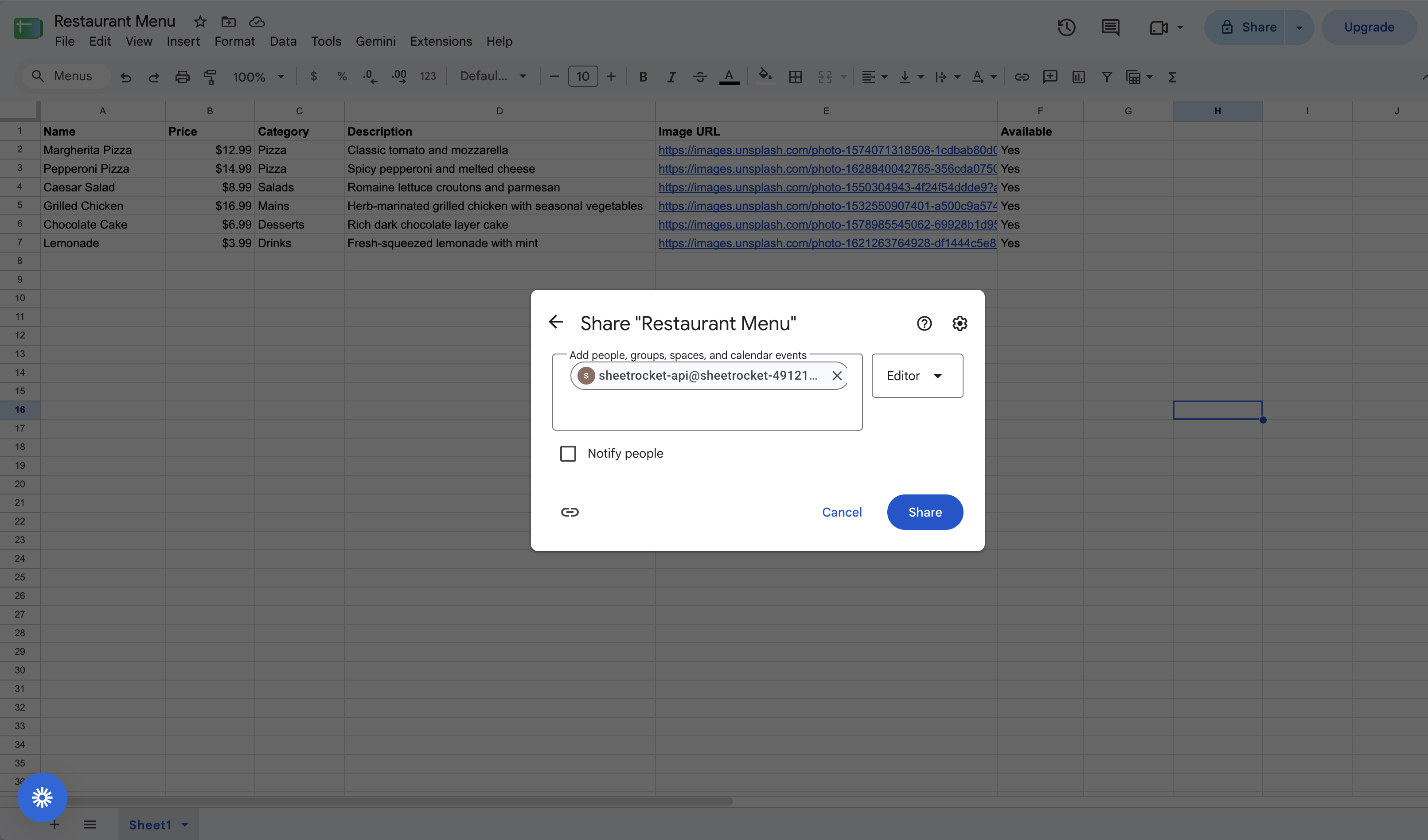
Click Share in the top right corner of your Google Sheet. Paste the service account email into the share field. Set the permission to Viewer. Click Share.
Now copy the URL of your Google Sheet from your browser's address bar. It looks like this:
https://docs.google.com/spreadsheets/d/
1abc123def456/edit#gid=0
Go back to SheetRocket and paste this URL into the Google Sheet URL field in the Data tab. Click Connect.
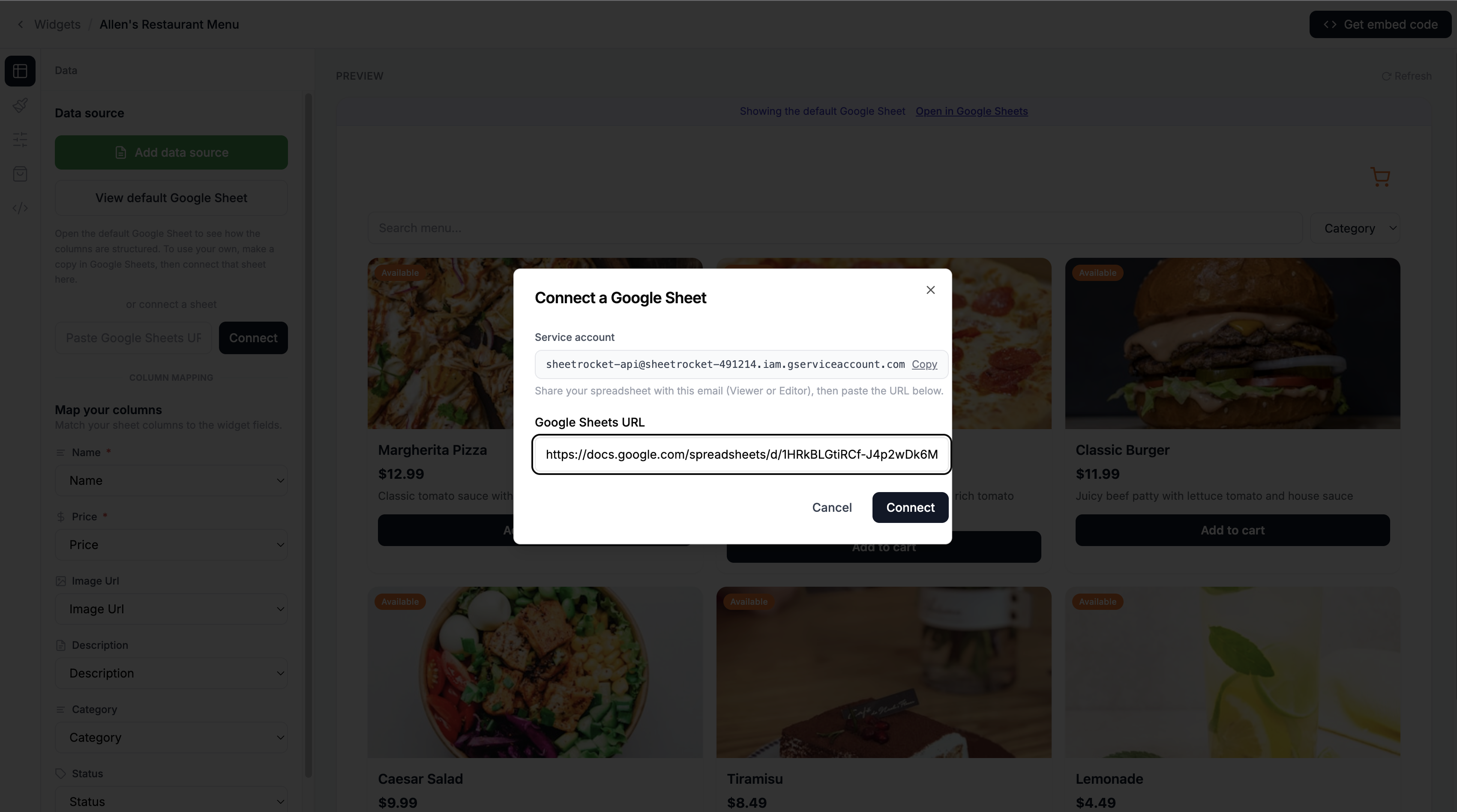
Sheetrocket will read your sheet and automatically detect your columns. You will see a success message, and the auto-mapping will pre-fill the column mapping fields.
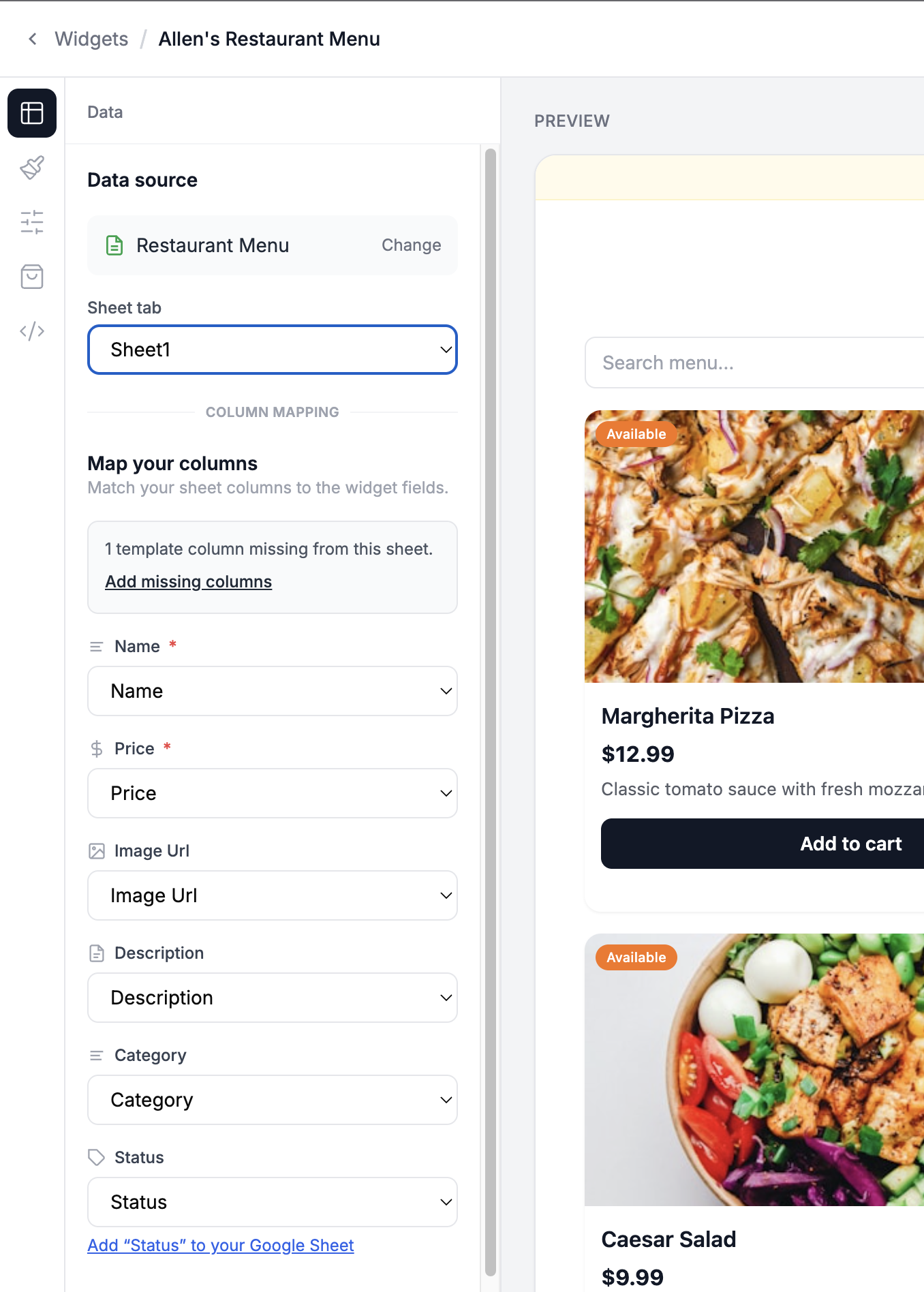
Review the column mapping. SheetRocket should have matched:
Item name    →   Name
Price        →   Price
Image        →   Image URL
Category     →   Category
Description  →   Description
Available    →   Available
If any mapping is off, use the dropdown to correct it. Click Save.
Your preview on the right side of the builder will now show your real menu items.
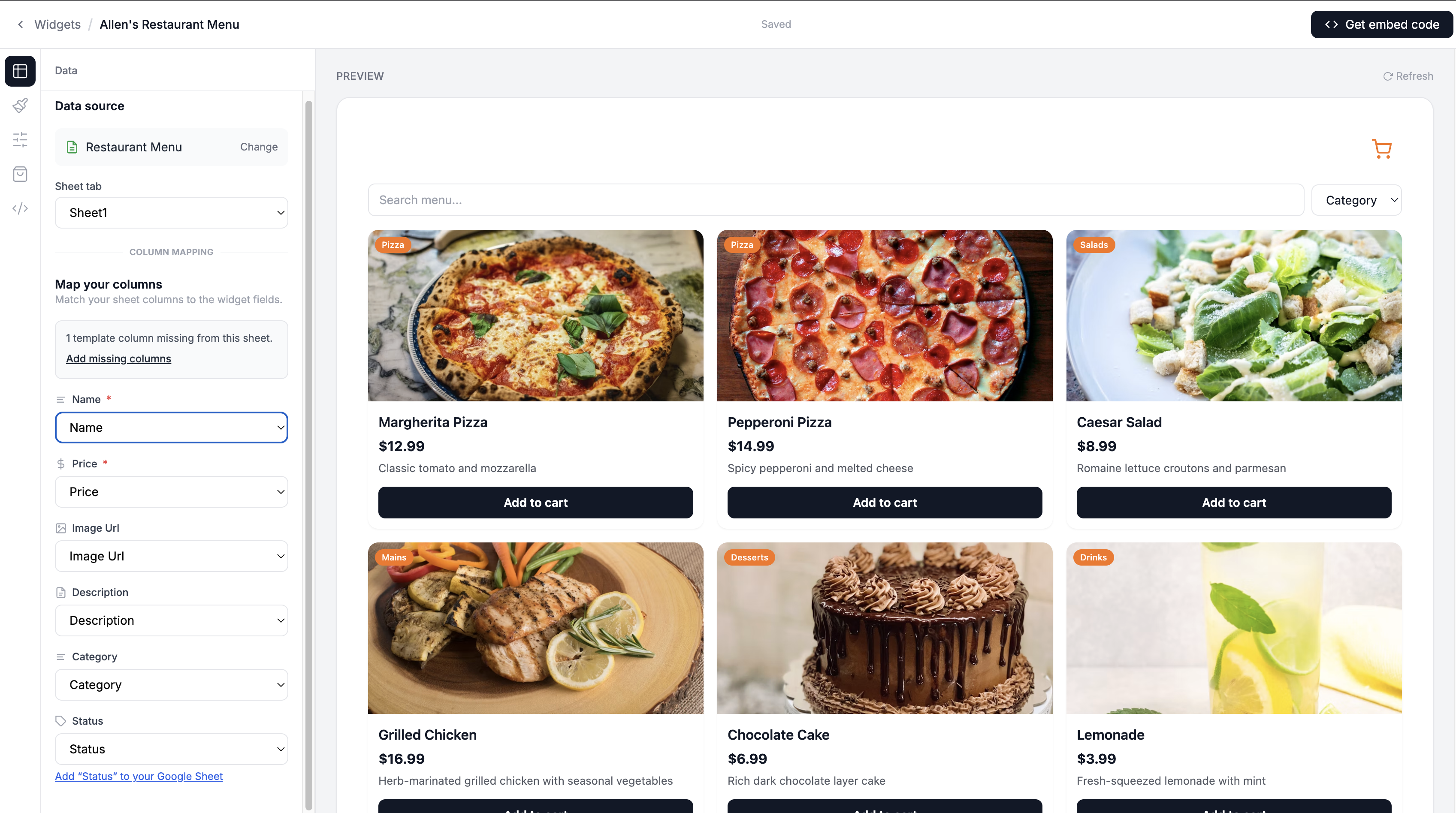
Step 5: Customize the Design
Click the Design tab.
Here you can match the widget to your restaurant branding:
Theme: Choose Light or Dark. Dark works well for upscale restaurants. Light works for casual cafes and family restaurants.
Accent color: Set this to your restaurant's primary brand color. This affects badge colors and the cart button.
Card columns: Choose 2, 3, or 4. Three columns work well for most menu layouts.
Image height: 200px to 240px works for most food photography.
Card radius: 12px gives a modern rounded look. 0px gives a sharper, more minimal look.
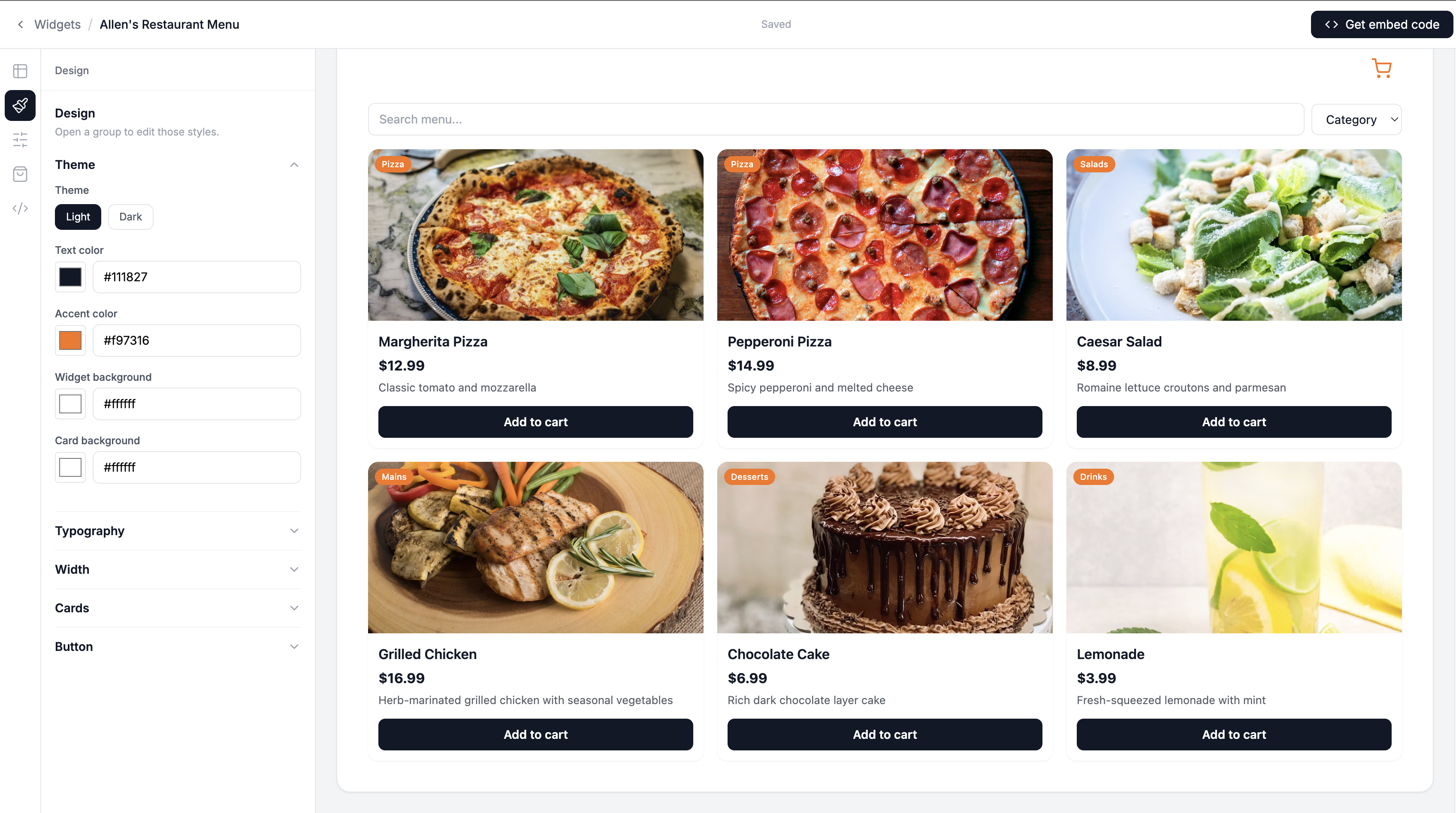
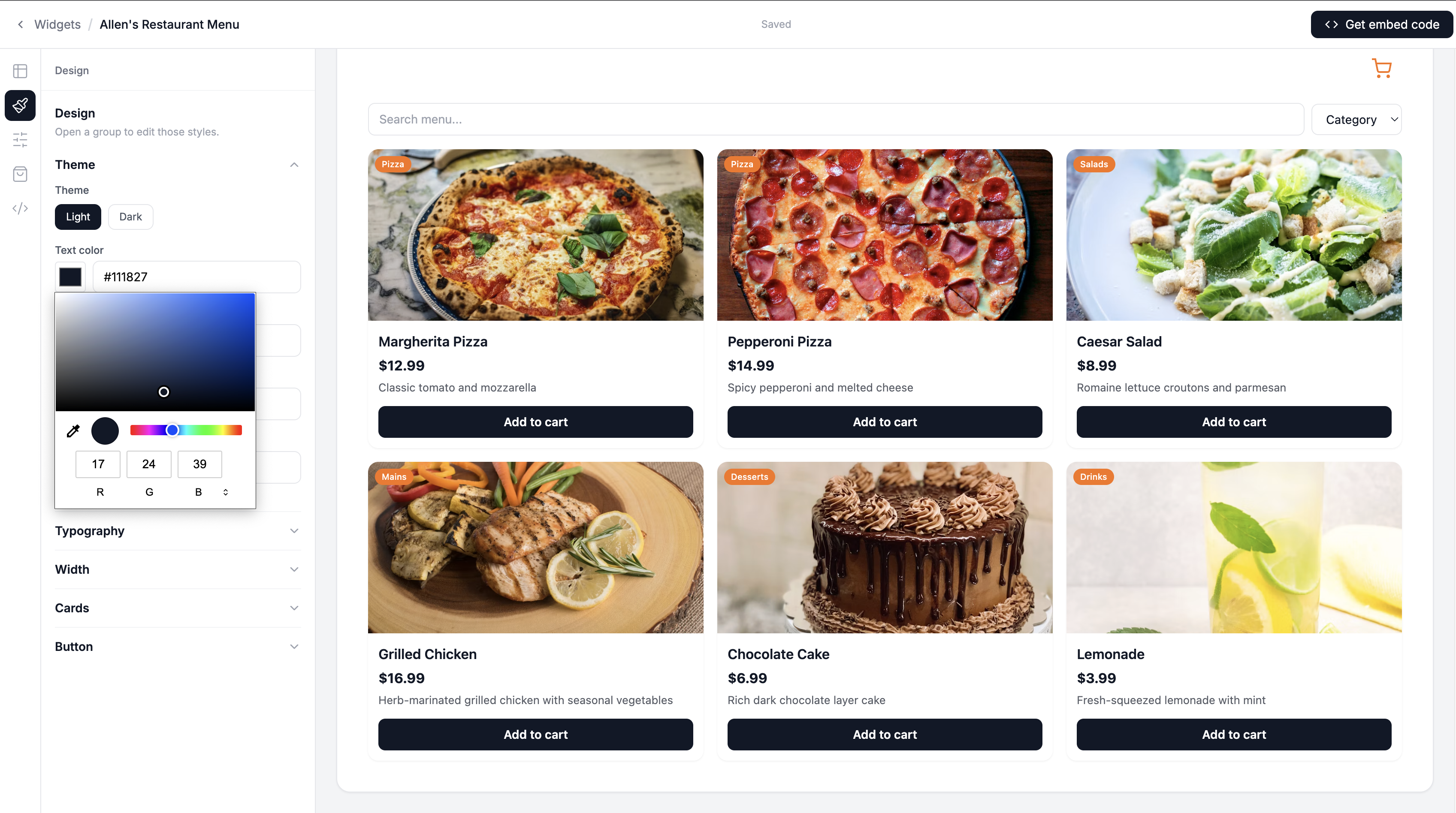
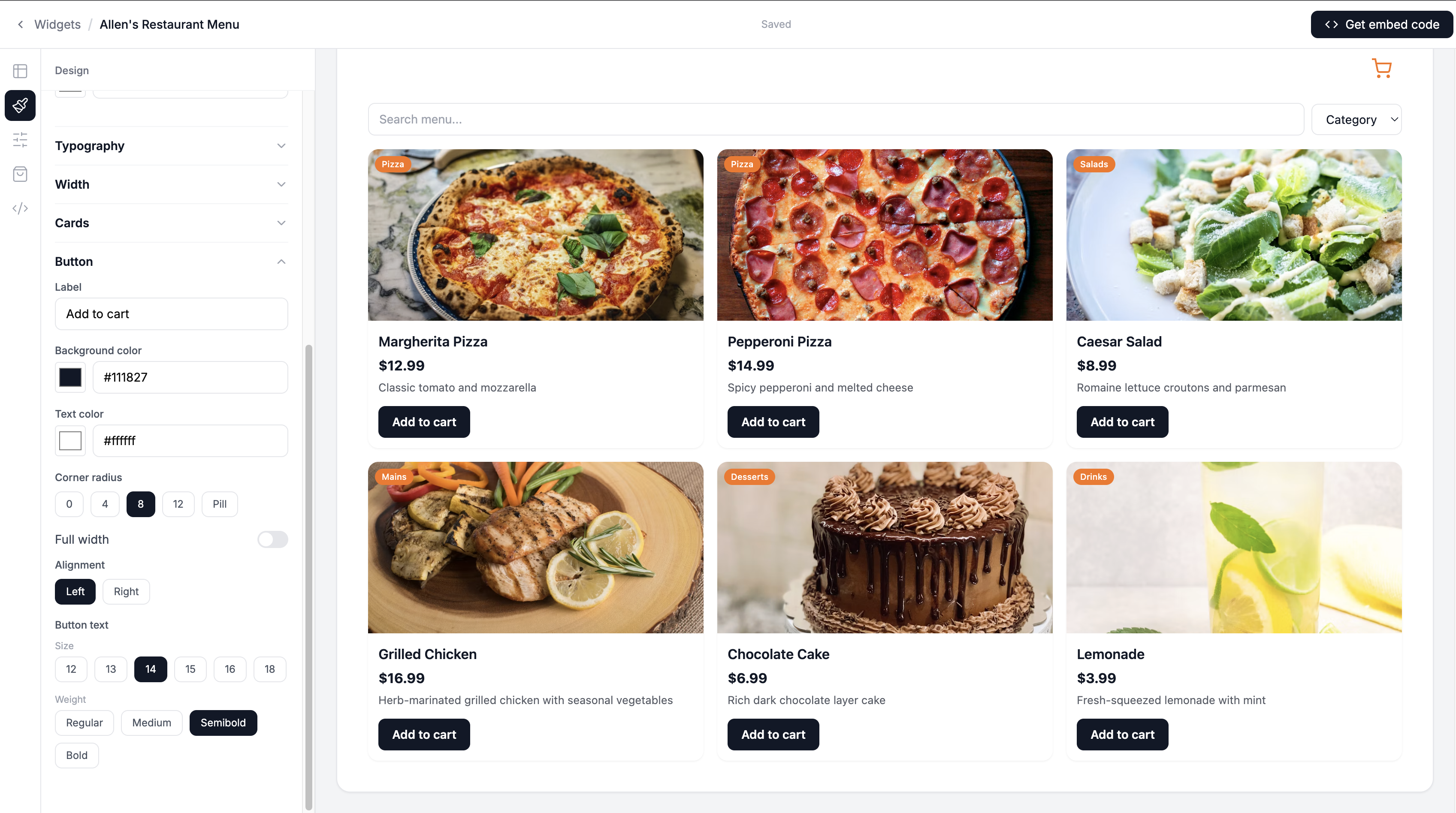
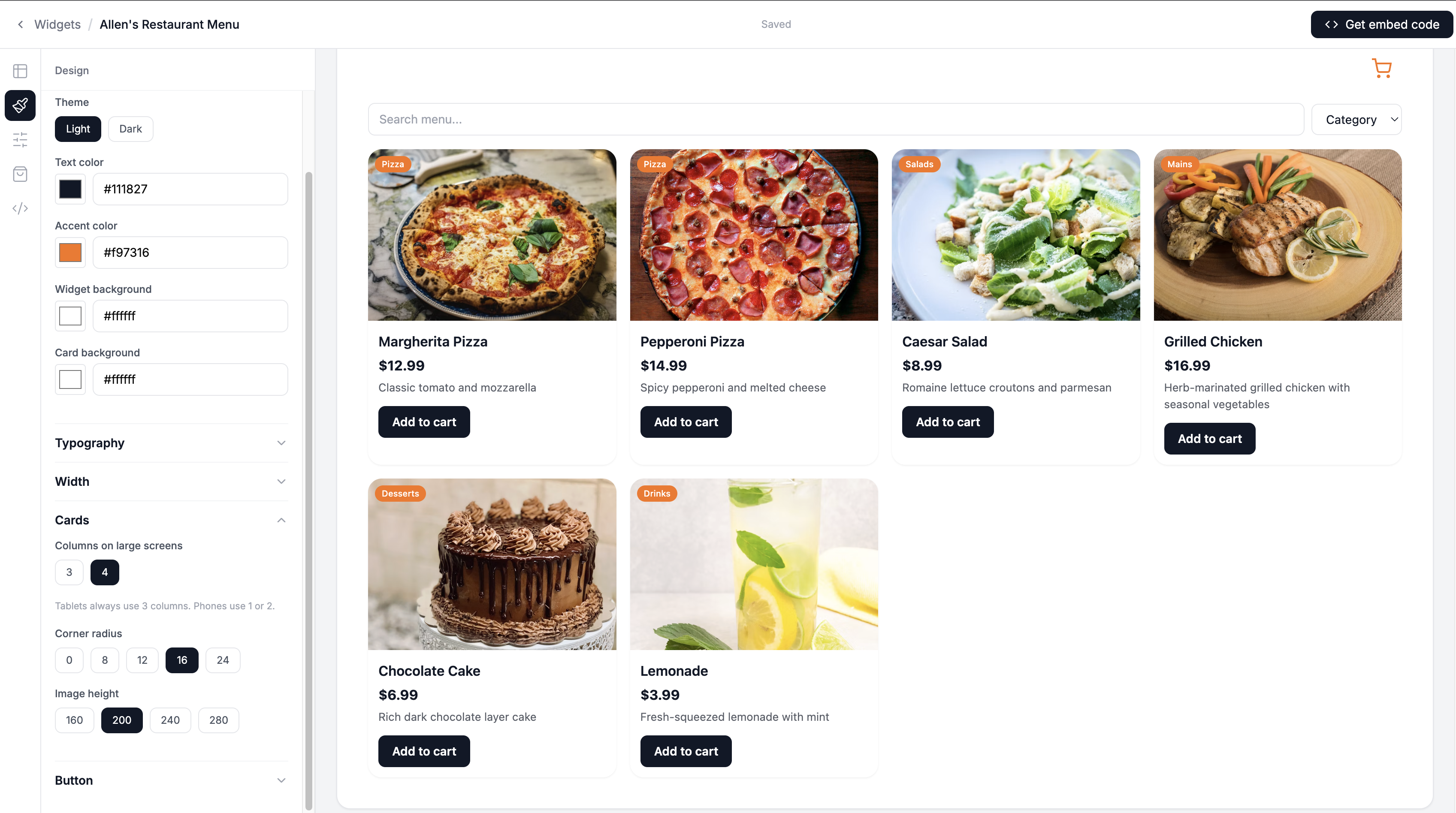
The preview updates in real time as you make changes. Take your time here to get it right before moving on.
Step 6: Set Up Category Filtering
Click the Filters tab.
Enable Show search bar. This lets customers search for specific dishes by name.
Enable Show filter dropdown. Set the filter column to Category. This adds a dropdown that lets customers filter by Pizza, Salads, Mains, Desserts, and Drinks.
Enable Pagination if you have more than 12 menu items. Set items per page to 12.
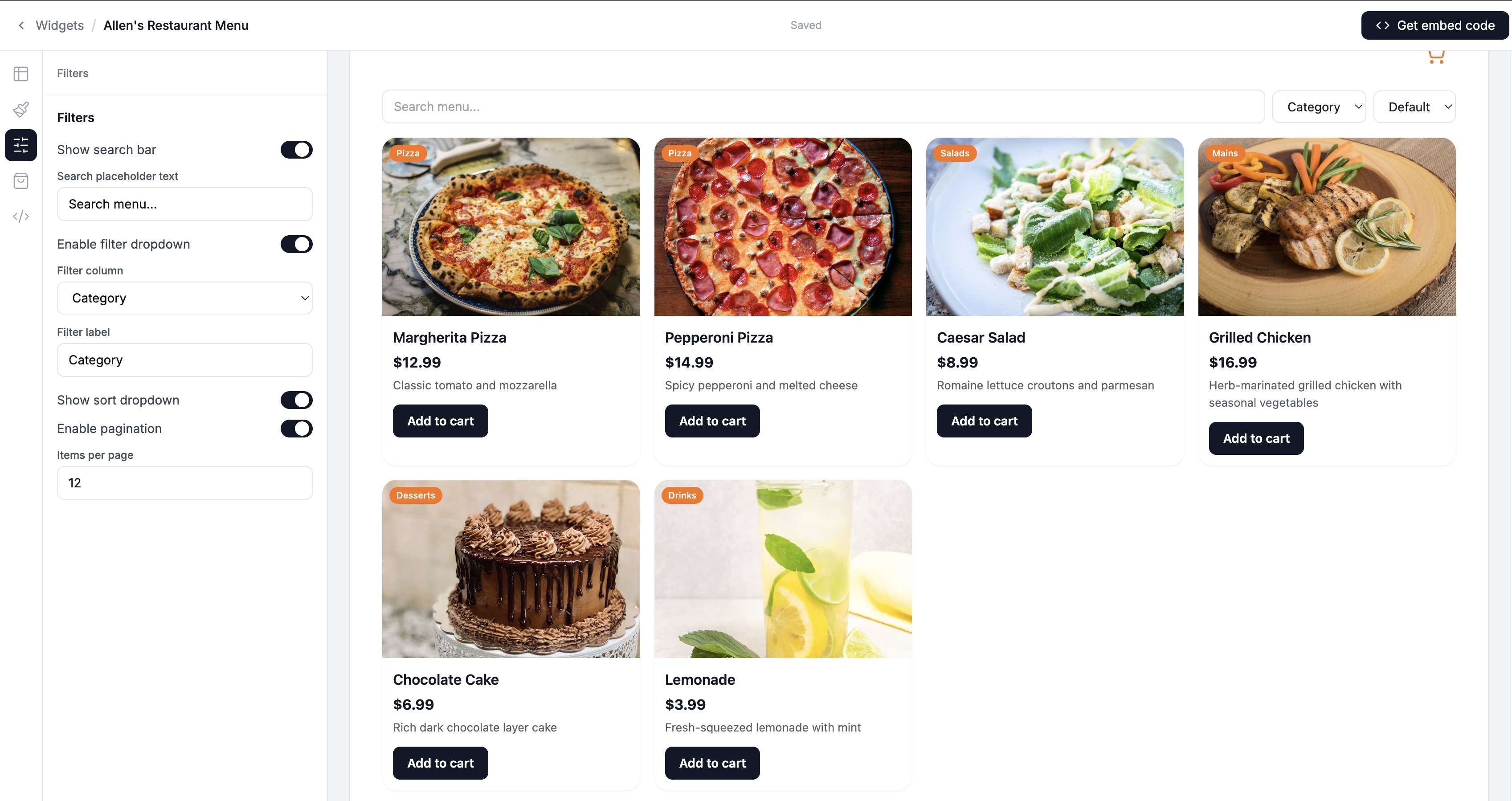
Your preview will now show the search bar and filter dropdown at the top of the menu.
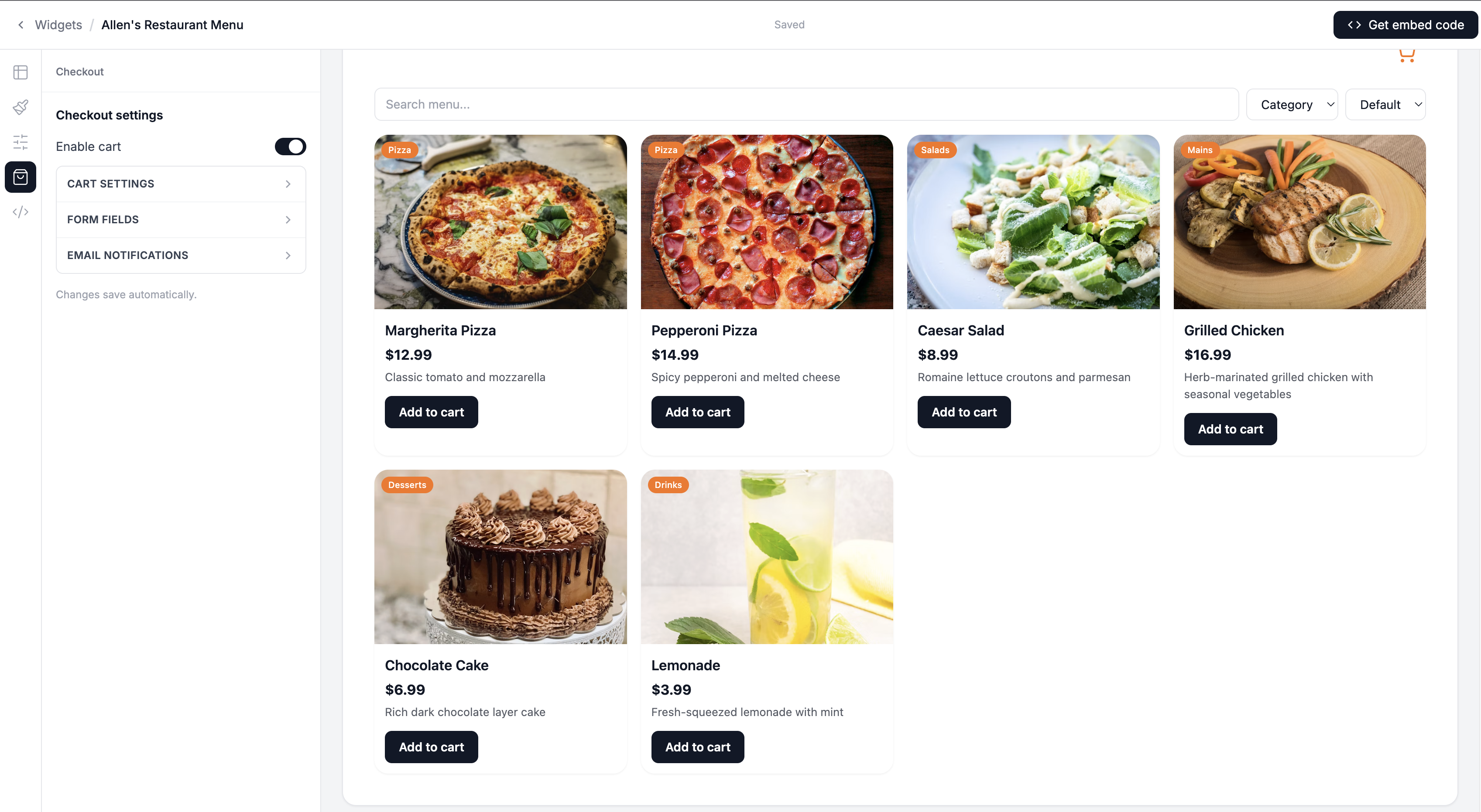
Step 7: Enable Cart and Ordering
This is the part that turns a menu display into an actual ordering system.
In the Design tab, scroll down to the Button section.
Toggle Add to cart mode on. This changes the button on each menu card from a link to a circular plus button. Customers tap the plus to add items to their cart.
Set the Button color to match your accent color.
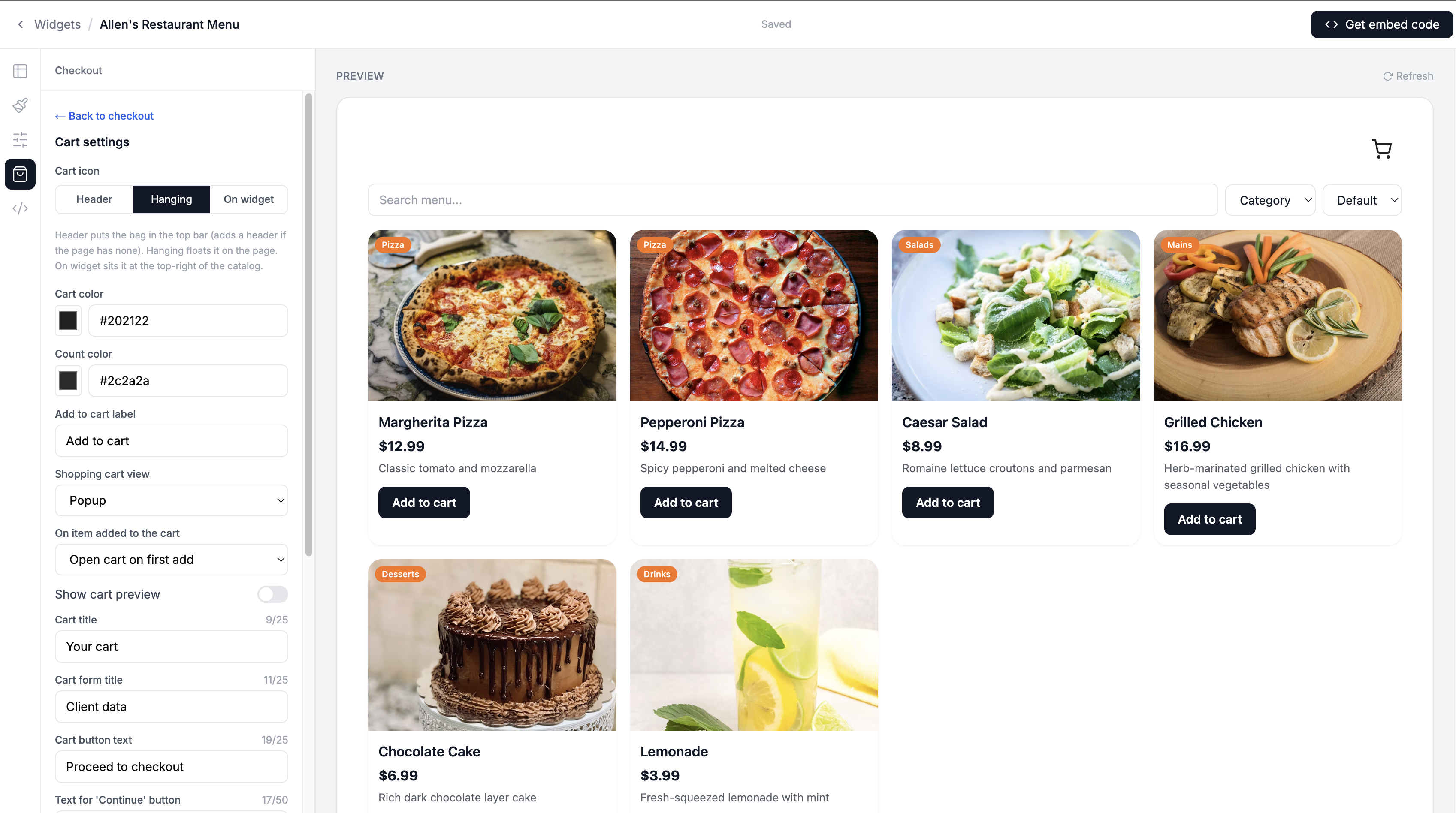
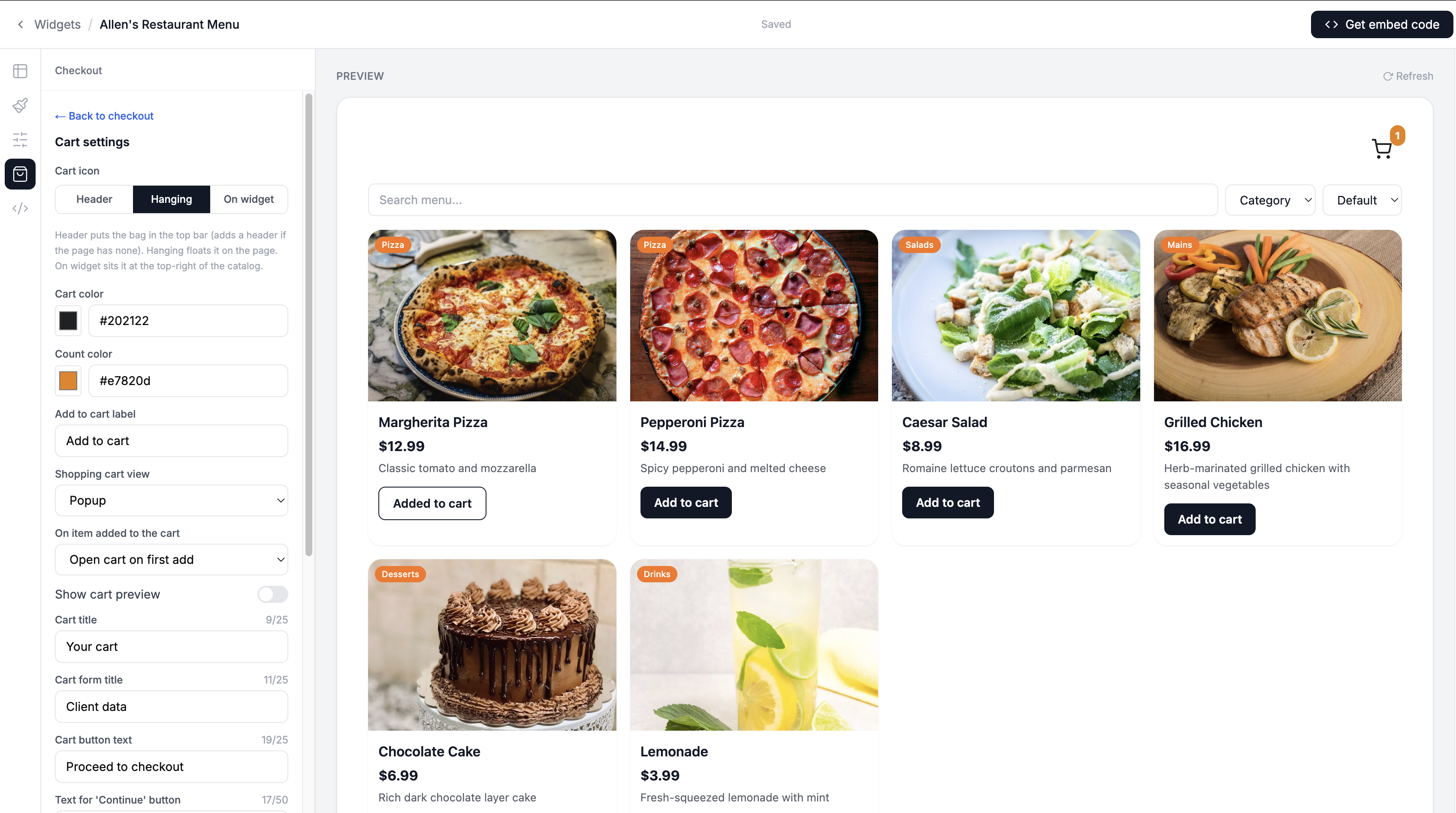
Now scroll down further to the Cart settings section.
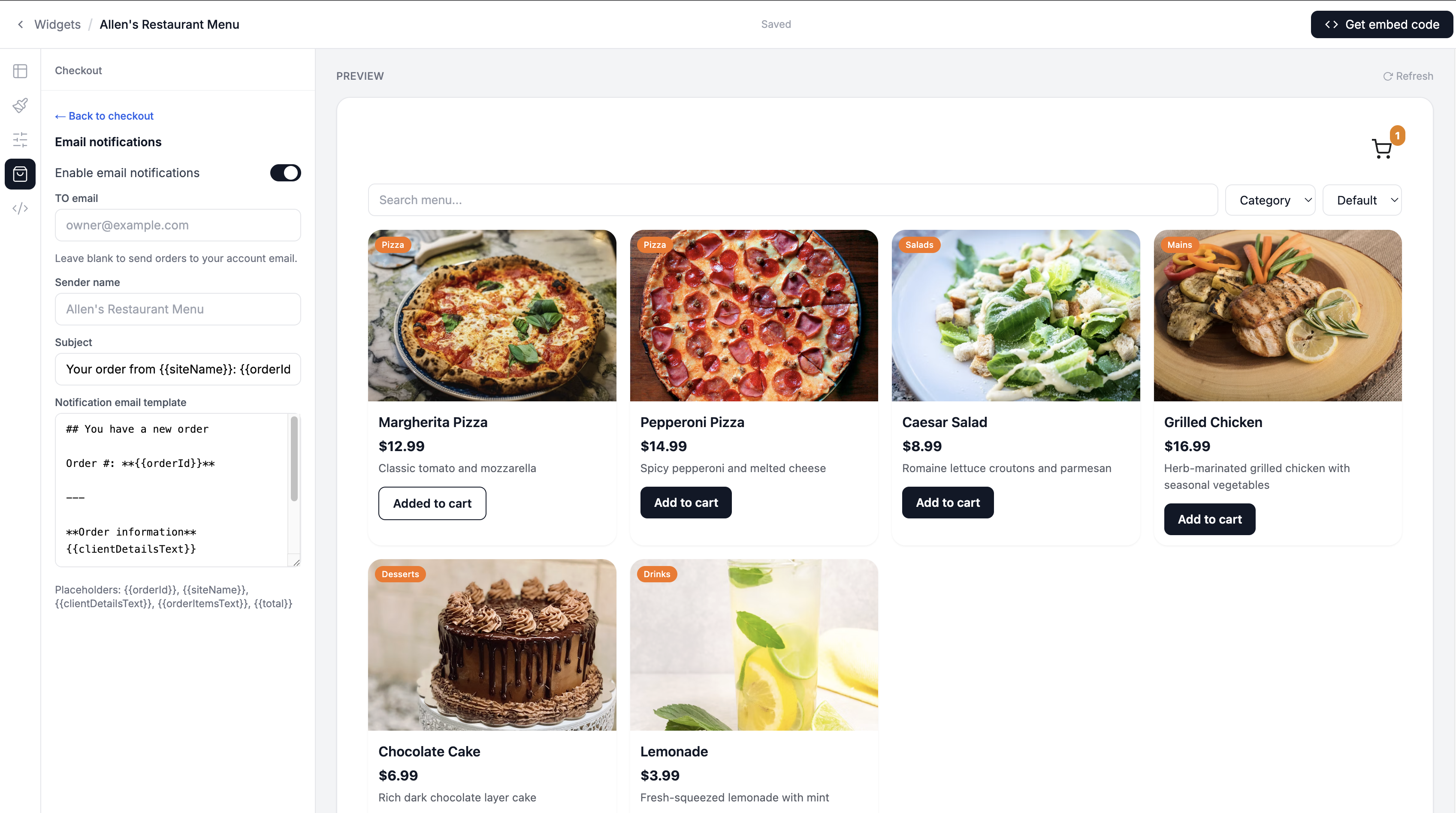
Set your Order notification email. This is where SheetRocket will send an email every time a customer places an order. Use the restaurant owner's email address.
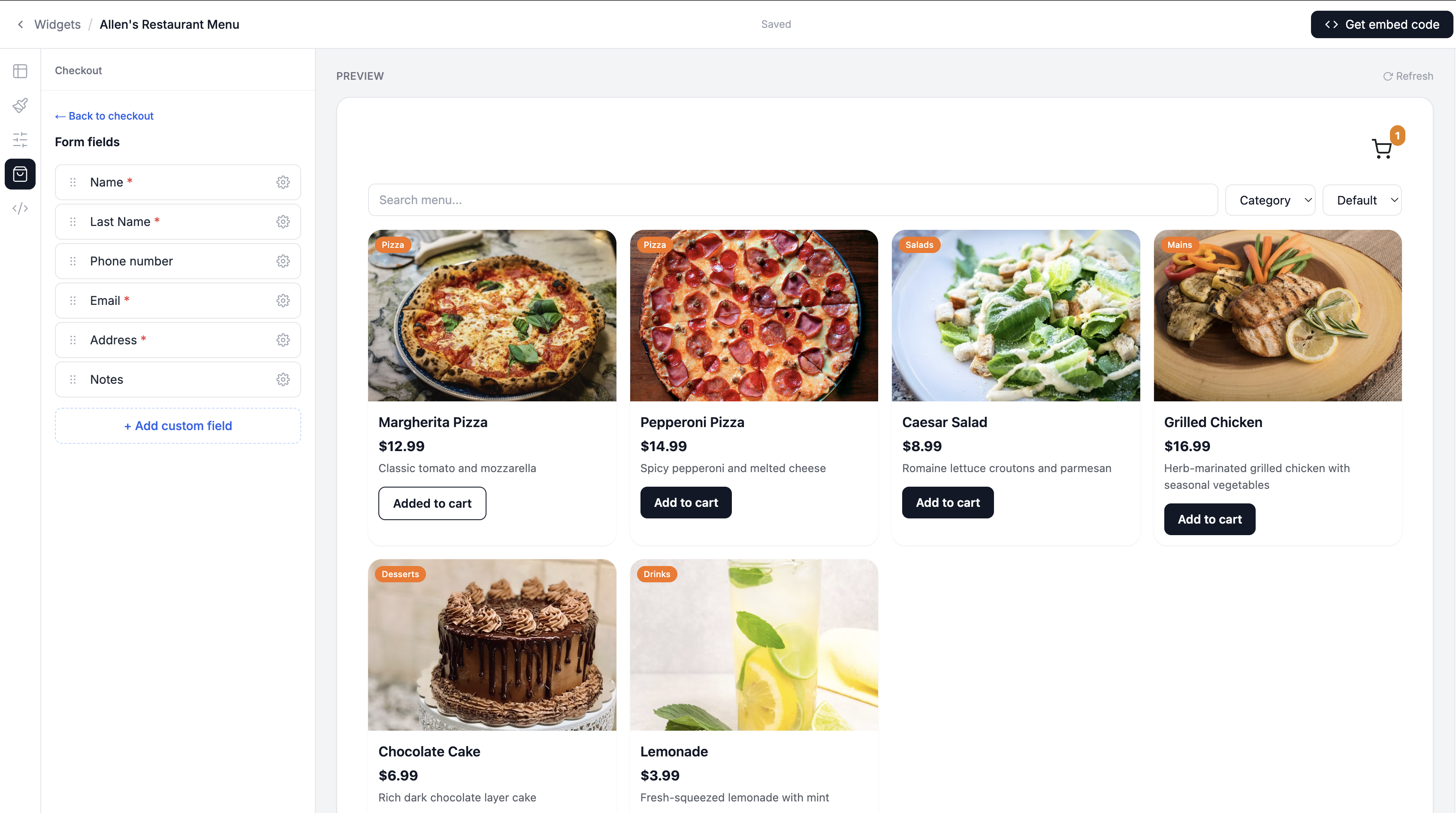
You can also configure what fields to collect at checkout:
Name         (required, always on)
Email        (required, always on)
Phone        toggle on or off
Address      toggle on or off
Notes        toggle on or off
For a restaurant taking delivery orders, turn on Phone and Address. For takeaway orders, just Phone is usually enough.
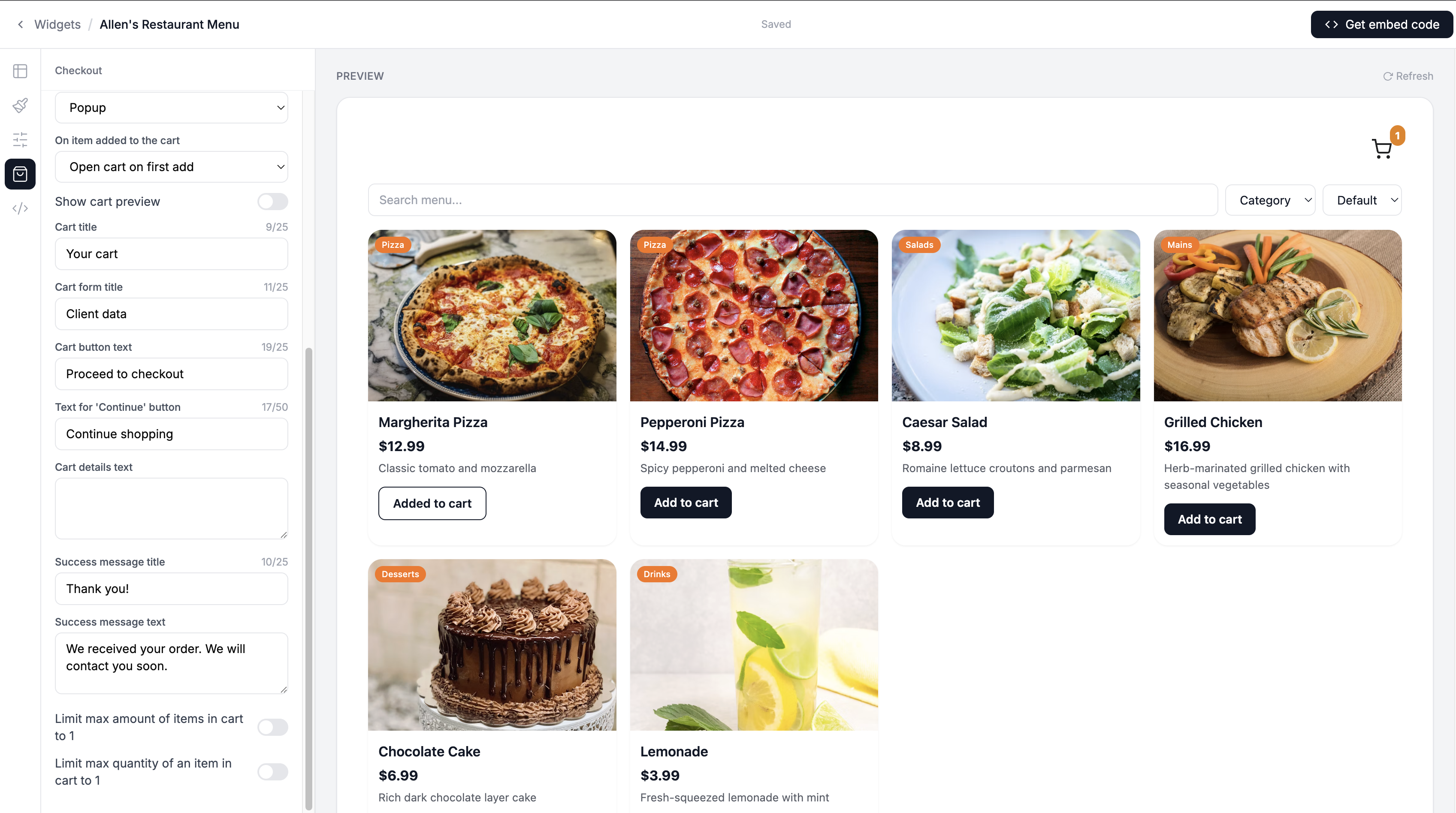
Toggle Send confirmation email to customer on. When a customer places an order, they will receive an automatic confirmation email with their order details.
Step 8: Copy Your Embed Code
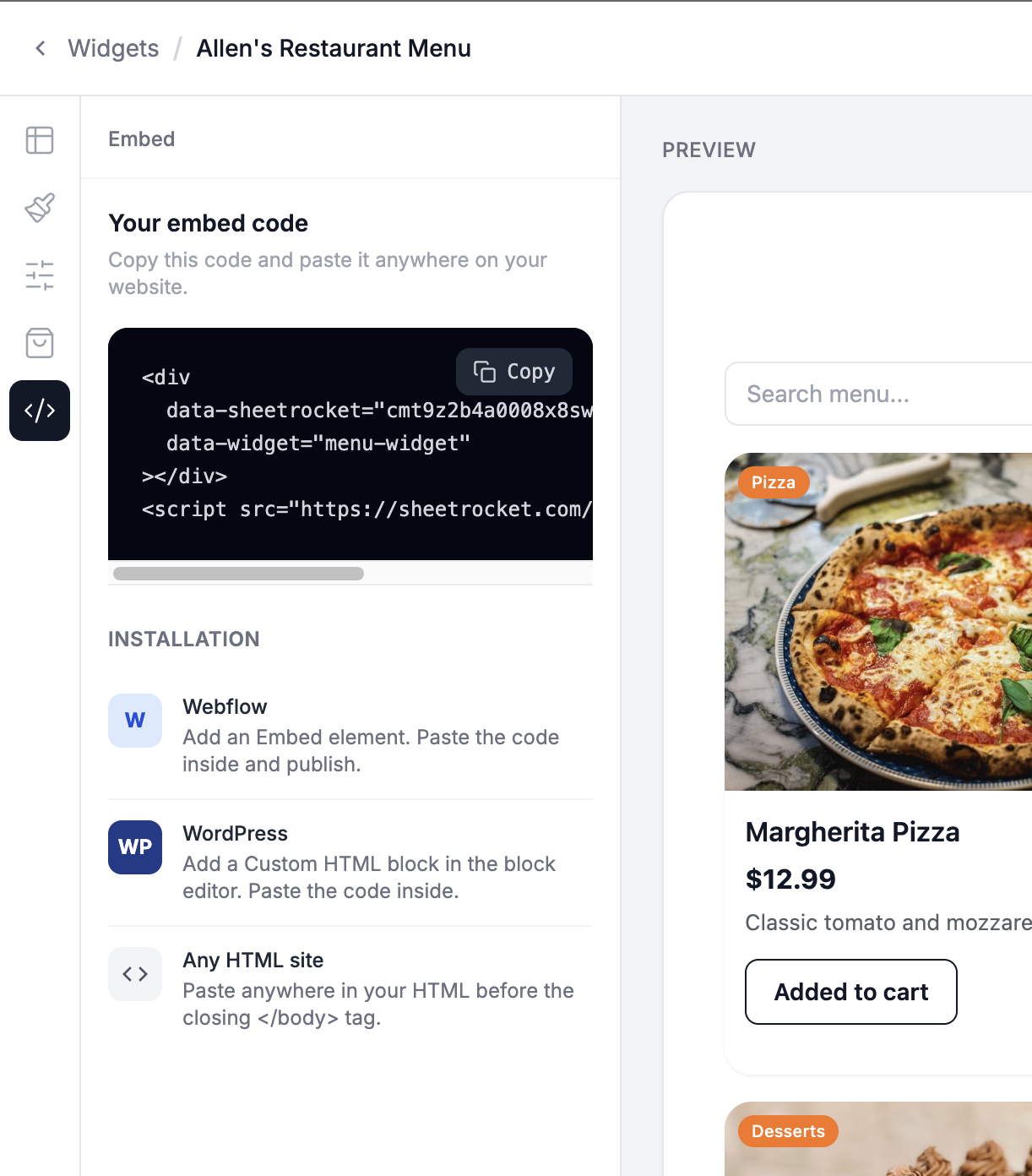
Click the Embed tab.
You will see your embed code. It looks like this:
<div
  data-sheetrocket="your-widget-id"
  data-template="menu-widget"
  data-theme="light"
  data-columns="3">
</div>
<script
  src="https://sheetrocket.com/widget.js"
  async>
</script>
Click Copy embed code.
Step 9: Build the Restaurant Website HTML
Now you build the full restaurant website. The menu section uses the embed code you just copied.
Create a new file called index.html and paste
in this complete template:
<!DOCTYPE html>
<html lang="en">
<head>
<meta charset="UTF-8">
<meta name="viewport" content="width=device-width, initial-scale=1.0">
<title>Allen's Restaurant, Little Italy, New York</title>
<meta name="description" content="Allen's Restaurant has been serving Little Italy since 1998. Handmade pasta, wood-fired pizza, and a table when you need one. Walk in or reserve.">
<link rel="preconnect" href="https://fonts.googleapis.com">
<link rel="preconnect" href="https://fonts.gstatic.com" crossorigin>
<link href="https://fonts.googleapis.com/css2?family=Karla:ital,wght@0,400;0,500;0,600;0,700;1,400&family=Playfair+Display:ital,wght@0,400;0,500;0,600;1,400;1,500&display=swap" rel="stylesheet">
<style>
:root {
--paper: #F3EDE2;
--paper-2: #E8DFD0;
--ink: #1A1410;
--ink-soft: #5A5248;
--wine: #6E1C22;
--wine-dark: #4E1318;
--olive: #3D4A32;
--rule: #C9BBA5;
--on-wine: #F3EDE2;
--font-display: "Playfair Display", Georgia, "Times New Roman", serif;
--font-body: "Karla", system-ui, sans-serif;
--ease: 200ms ease;
--z-nav: 20;
--z-menu: 30;
--space-xs: 4px;
--space-sm: 8px;
--space-md: 16px;
--space-lg: 24px;
--space-xl: 32px;
--space-2xl: 48px;
--space-3xl: 80px;
--content: 1120px;
--gutter: clamp(1.25rem, 4vw, 2.5rem);
}
*, *::before, *::after {
box-sizing: border-box;
margin: 0;
padding: 0;
}
html {
scroll-behavior: smooth;
}
@media (prefers-reduced-motion: reduce) {
html { scroll-behavior: auto; }
*, *::before, *::after {
animation-duration: 0.01ms !important;
animation-iteration-count: 1 !important;
transition-duration: 0.01ms !important;
}
}
body {
font-family: var(--font-body);
color: var(--ink);
background: var(--paper);
line-height: 1.65;
-webkit-font-smoothing: antialiased;
}
body::after {
content: "";
position: fixed;
inset: 0;
pointer-events: none;
z-index: 40;
opacity: 0.035;
background-image: url("data:image/svg+xml,%3Csvg viewBox='0 0 200 200' xmlns='http://www.w3.org/2000/svg'%3E%3Cfilter id='n'%3E%3CfeTurbulence type='fractalNoise' baseFrequency='0.85' numOctaves='4' stitchTiles='stitch'/%3E%3C/filter%3E%3Crect width='100%25' height='100%25' filter='url(%23n)'/%3E%3C/svg%3E");
}
img {
max-width: 100%;
display: block;
}
a, button, label, select, summary {
cursor: pointer;
}
a:focus-visible,
button:focus-visible,
input:focus-visible,
select:focus-visible,
textarea:focus-visible {
outline: 2px solid var(--wine);
outline-offset: 3px;
}
.skip-link {
position: absolute;
left: var(--gutter);
top: -100px;
z-index: 50;
background: var(--wine);
color: var(--on-wine);
padding: 0.75rem 1.25rem;
font-size: 0.875rem;
font-weight: 600;
text-decoration: none;
}
.skip-link:focus {
top: 1rem;
}
.wrap {
width: min(var(--content), calc(100% - var(--gutter) * 2));
margin-inline: auto;
}
#about,
#menu,
#reserve,
#visit,
#main {
scroll-margin-top: 80px;
}
/* Nav */
.site-header {
position: sticky;
top: 0;
z-index: var(--z-nav);
background: var(--paper);
border-bottom: 1px solid var(--rule);
}
.nav {
display: flex;
align-items: center;
justify-content: space-between;
height: 72px;
gap: var(--space-lg);
}
.nav-panel {
margin-left: auto;
}
.brand {
font-family: var(--font-display);
font-size: 1.625rem;
font-style: italic;
font-weight: 500;
color: var(--ink);
text-decoration: none;
line-height: 1;
}
.brand span {
display: block;
font-family: var(--font-body);
font-style: normal;
font-size: 0.6875rem;
font-weight: 500;
letter-spacing: 0.12em;
color: var(--ink-soft);
margin-top: 4px;
}
.nav-links {
display: flex;
align-items: center;
gap: 2rem;
list-style: none;
}
.nav-links a {
color: var(--ink);
text-decoration: none;
font-size: 0.9375rem;
font-weight: 500;
transition: color var(--ease);
}
.nav-links a:hover {
color: var(--wine);
}
.nav-links a.nav-reserve {
display: inline-block;
background: var(--wine);
color: var(--on-wine);
text-decoration: none;
font-size: 0.8125rem;
font-weight: 600;
padding: 0.7rem 1.15rem;
border-radius: 2px;
transition: background var(--ease);
}
.nav-links a.nav-reserve:hover {
background: var(--wine-dark);
color: var(--on-wine);
}
.nav-toggle {
display: none;
width: 44px;
height: 44px;
border: 0;
background: transparent;
position: relative;
}
.nav-toggle span,
.nav-toggle span::before,
.nav-toggle span::after {
display: block;
width: 20px;
height: 1.5px;
background: var(--ink);
position: absolute;
left: 12px;
transition: transform var(--ease), opacity var(--ease);
}
.nav-toggle span { top: 21px; }
.nav-toggle span::before,
.nav-toggle span::after {
content: "";
left: 0;
}
.nav-toggle span::before { top: -6px; }
.nav-toggle span::after { top: 6px; }
.nav-toggle[aria-expanded="true"] span {
background: transparent;
}
.nav-toggle[aria-expanded="true"] span::before {
top: 0;
transform: rotate(45deg);
}
.nav-toggle[aria-expanded="true"] span::after {
top: 0;
transform: rotate(-45deg);
}
/* Hero */
.hero {
display: grid;
grid-template-columns: minmax(0, 1fr) minmax(0, 1.15fr);
min-height: calc(100svh - 72px);
border-bottom: 1px solid var(--rule);
}
.hero-copy {
display: flex;
flex-direction: column;
justify-content: center;
padding: clamp(2.5rem, 6vw, 5rem) 2.5rem clamp(2.5rem, 5vw, 4rem) max(var(--gutter), calc((100vw - var(--content)) / 2));
}
.hero-copy p.lede {
font-size: 0.875rem;
color: var(--olive);
font-weight: 600;
margin-bottom: 1.25rem;
}
.hero h1 {
font-family: var(--font-display);
font-weight: 500;
font-size: clamp(2.5rem, 5.4vw, 4.25rem);
line-height: 1.12;
letter-spacing: -0.02em;
margin-bottom: 1.25rem;
}
.hero h1 em {
font-style: italic;
font-weight: 400;
}
.hero-copy .intro {
font-size: 1.125rem;
color: var(--ink-soft);
max-width: 28rem;
margin-bottom: 2rem;
}
.hero-actions {
display: flex;
align-items: center;
gap: 1.5rem;
flex-wrap: wrap;
}
.btn {
display: inline-block;
background: var(--wine);
color: var(--on-wine);
text-decoration: none;
font-size: 0.9375rem;
font-weight: 600;
padding: 0.9rem 1.5rem;
border: 0;
border-radius: 2px;
font-family: inherit;
transition: background var(--ease);
}
.btn:hover {
background: var(--wine-dark);
}
.text-link {
color: var(--ink);
font-size: 0.9375rem;
font-weight: 600;
text-decoration: none;
border-bottom: 1px solid var(--ink);
padding-bottom: 2px;
transition: color var(--ease), border-color var(--ease);
}
.text-link:hover {
color: var(--wine);
border-color: var(--wine);
}
.hero-photo {
min-height: 320px;
overflow: hidden;
}
.hero-photo img {
width: 100%;
height: 100%;
object-fit: cover;
min-height: 100%;
}
/* About */
.about {
padding: var(--space-3xl) 0;
}
.about-grid {
display: grid;
grid-template-columns: 1.05fr 0.95fr;
gap: clamp(2rem, 5vw, 4.5rem);
align-items: center;
}
.about-photo {
overflow: hidden;
}
.about-photo img {
width: 100%;
height: 100%;
aspect-ratio: 4 / 5;
object-fit: cover;
}
.about-photo figcaption {
font-size: 0.75rem;
color: var(--ink-soft);
margin-top: 0.75rem;
}
.about h2 {
font-family: var(--font-display);
font-weight: 500;
font-size: clamp(2rem, 3.5vw, 2.75rem);
line-height: 1.2;
margin-bottom: 1.25rem;
}
.about h2 em {
font-style: italic;
font-weight: 400;
}
.about p {
color: var(--ink-soft);
font-size: 1.0625rem;
margin-bottom: 1rem;
}
.pull {
font-family: var(--font-display);
font-style: italic;
font-size: 1.375rem;
line-height: 1.45;
color: var(--ink);
margin: 1.75rem 0 0;
padding-top: 1.5rem;
border-top: 1px solid var(--rule);
}
/* Visit band */
.visit {
background: var(--wine);
color: var(--on-wine);
padding: 3.5rem 0;
}
.visit-grid {
display: grid;
grid-template-columns: 1.2fr repeat(3, 1fr);
gap: 2rem;
align-items: start;
}
.visit h2 {
font-family: var(--font-display);
font-weight: 500;
font-size: clamp(1.75rem, 3vw, 2.25rem);
line-height: 1.2;
}
.visit h2 em {
font-style: italic;
font-weight: 400;
}
.visit h3 {
font-size: 0.75rem;
font-weight: 600;
letter-spacing: 0.08em;
text-transform: uppercase;
color: rgba(243, 237, 226, 0.65);
margin-bottom: 0.5rem;
}
.visit p,
.visit a {
font-size: 1rem;
color: var(--on-wine);
text-decoration: none;
line-height: 1.55;
}
.visit a:hover {
text-decoration: underline;
}
/* Menu */
.menu {
padding: var(--space-3xl) 0;
}
.menu-header {
display: grid;
grid-template-columns: 1fr 1fr;
gap: 2rem;
align-items: end;
margin-bottom: 2.5rem;
padding-bottom: 1.5rem;
border-bottom: 1px solid var(--rule);
}
.menu h2 {
font-family: var(--font-display);
font-weight: 500;
font-size: clamp(2rem, 3.5vw, 2.75rem);
}
.menu-header p {
color: var(--ink-soft);
font-size: 1.0625rem;
}
/* Reserve */
.reserve {
padding: 0 0 var(--space-3xl);
}
.reserve-grid {
display: grid;
grid-template-columns: 0.85fr 1.15fr;
gap: clamp(2rem, 5vw, 4.5rem);
padding-top: var(--space-3xl);
border-top: 1px solid var(--rule);
}
.reserve h2 {
font-family: var(--font-display);
font-weight: 500;
font-size: clamp(2rem, 3.5vw, 2.75rem);
margin-bottom: 1rem;
}
.reserve .lede {
color: var(--ink-soft);
font-size: 1.0625rem;
margin-bottom: 1.5rem;
}
.reserve-note {
font-size: 0.9375rem;
color: var(--ink-soft);
}
.form-row {
display: grid;
grid-template-columns: 1fr 1fr;
gap: 1.25rem;
}
.field {
margin-bottom: 1.25rem;
}
.field label {
display: block;
font-size: 0.8125rem;
font-weight: 600;
margin-bottom: 0.4rem;
}
.field input,
.field select,
.field textarea {
width: 100%;
font: 400 1rem/1.4 var(--font-body);
color: var(--ink);
background: transparent;
border: 0;
border-bottom: 1px solid var(--rule);
border-radius: 0;
padding: 0.65rem 0;
appearance: none;
}
.field select {
background-image: url("data:image/svg+xml,%3Csvg xmlns='http://www.w3.org/2000/svg' width='12' height='8' viewBox='0 0 12 8'%3E%3Cpath fill='none' stroke='%231A1410' stroke-width='1.4' d='M1 1l5 5 5-5'/%3E%3C/svg%3E");
background-repeat: no-repeat;
background-position: right 0 center;
padding-right: 1.5rem;
}
.field textarea {
min-height: 5.5rem;
resize: vertical;
}
.field input:focus,
.field select:focus,
.field textarea:focus {
outline: none;
border-bottom-color: var(--wine);
}
.form-status {
display: none;
font-family: var(--font-display);
font-style: italic;
font-size: 1.375rem;
line-height: 1.45;
}
.form-status.is-visible {
display: block;
}
form.is-sent {
display: none;
}
/* Footer */
footer {
border-top: 1px solid var(--rule);
padding: 1.5rem 0 2rem;
}
.footer-inner {
display: flex;
justify-content: space-between;
align-items: baseline;
gap: 1rem;
flex-wrap: wrap;
}
.footer-inner p {
font-size: 0.875rem;
color: var(--ink-soft);
}
.footer-inner a {
color: var(--ink);
text-decoration: none;
}
.footer-inner a:hover {
color: var(--wine);
}
@media (max-width: 860px) {
.nav-toggle {
display: block;
}
.nav-panel {
display: none;
position: absolute;
top: 72px;
left: 0;
right: 0;
z-index: var(--z-menu);
background: var(--paper);
border-bottom: 1px solid var(--rule);
padding: 1rem var(--gutter) 1.5rem;
}
.nav-panel.is-open {
display: block;
}
.nav-links {
flex-direction: column;
align-items: flex-start;
gap: 1rem;
}
.nav-reserve {
margin-top: 0.5rem;
}
.hero {
grid-template-columns: 1fr;
min-height: 0;
}
.hero-photo {
order: -1;
height: 46vh;
min-height: 240px;
}
.hero-copy {
max-width: none;
padding: 2rem var(--gutter) 2.5rem;
}
.about-grid,
.menu-header,
.reserve-grid,
.form-row {
grid-template-columns: 1fr;
}
.about-photo img {
aspect-ratio: 4 / 3;
}
.visit-grid {
grid-template-columns: 1fr 1fr;
gap: 1.75rem;
}
.visit-grid > :first-child {
grid-column: 1 / -1;
}
}
@media (max-width: 520px) {
.visit-grid {
grid-template-columns: 1fr;
}
}
</style>
</head>
<body>
<a class="skip-link" href="#main">Skip to content</a>
<header class="site-header">
<div class="wrap nav">
<a href="#" class="brand">
Allen's
<span>Restaurant · Est. 1998</span>
</a>
<button class="nav-toggle" type="button" aria-expanded="false" aria-controls="nav-panel" aria-label="Open menu">
<span></span>
</button>
<div class="nav-panel" id="nav-panel">
<ul class="nav-links">
<li><a href="#about">About</a></li>
<li><a href="#menu">Menu</a></li>
<li><a href="#reserve">Reservations</a></li>
<li><a class="nav-reserve" href="#reserve">Reserve a table</a></li>
</ul>
</div>
</div>
</header>
<main id="main">
<section class="hero" aria-label="Introduction">
<div class="hero-copy">
<p class="lede">123 Pasta Lane, Little Italy</p>
<h1>Pasta rolled this morning. <em>Sauce from yesterday.</em></h1>
<p class="intro">
A neighborhood kitchen for twenty-five years. Handmade pasta, wood-fired pizza, and a table when you need one.
</p>
<div class="hero-actions">
<a class="btn" href="#reserve">Reserve a table</a>
<a class="text-link" href="#menu">See the menu</a>
</div>
</div>
<div class="hero-photo">
<img
src="https://images.unsplash.com/photo-1552566626-52f8b828add9?w=1600&q=80"
alt="The dining room at Allen's Restaurant"
width="1600"
height="1200"
fetchpriority="high"
>
</div>
</section>
<section class="about" id="about">
<div class="wrap about-grid">
<figure class="about-photo">
<img
src="https://images.unsplash.com/photo-1555396273-367ea4eb4db5?w=1200&q=80"
alt="The dining room at Allen's Restaurant"
width="1200"
height="1500"
loading="lazy"
>
<figcaption>The dining room on a Tuesday. Come as you are.</figcaption>
</figure>
<div>
<h2>Three generations in <em>one kitchen.</em></h2>
<p>
Allen's Restaurant has been on Pasta Lane since 1998. Every dish is made from scratch, from recipes that started in a family kitchen outside Naples and settled here.
</p>
<p>
Tomatoes come from a family farm in Campania. The cheese is from a producer two hours upstate. The pasta is rolled every morning. If we run out, we run out.
</p>
<p class="pull">
“The tagliatelle is what my nonna would have made, if she had a wood oven in Little Italy.”
</p>
</div>
</div>
</section>
<section class="visit" id="visit" aria-labelledby="visit-heading">
<div class="wrap visit-grid">
<h2 id="visit-heading">Walk in, or <em>call ahead.</em></h2>
<div>
<h3>Address</h3>
<p>123 Pasta Lane<br>Little Italy<br>New York, NY 10013</p>
</div>
<div>
<h3>Hours</h3>
<p>Monday–Friday<br>12pm–10pm<br>Saturday–Sunday<br>11am–11pm</p>
</div>
<div>
<h3>Phone</h3>
<p><a href="tel:+12125550142">(212) 555-0142</a></p>
</div>
</div>
</section>
<section class="menu" id="menu">
<div class="wrap">
<div class="menu-header">
<h2>What's cooking</h2>
<p>Made to order. Add to your cart and we'll have it ready for pickup or delivery.</p>
</div>
<div
data-sheetrocket="cmt9z2b4a0008x8sw6hrif38p"
data-widget="menu-widget"
></div>
<script src="https://sheetrocket.com/catalog-widget.js" async></script>
</div>
</section>
<section class="reserve" id="reserve">
<div class="wrap reserve-grid">
<div>
<h2>Reserve a table</h2>
<p class="lede">
Tell us when you're coming. We'll write back to confirm. Weekends fill up, so a day's notice helps.
</p>
<p class="reserve-note">
For parties of eight or more, call the restaurant directly.
</p>
</div>
<div>
<p class="form-status" id="form-status" role="status"></p>
<form id="reserve-form" action="#" method="post" novalidate>
<div class="form-row">
<div class="field">
<label for="name">Name</label>
<input id="name" name="name" type="text" autocomplete="name" required>
</div>
<div class="field">
<label for="email">Email</label>
<input id="email" name="email" type="email" autocomplete="email" required>
</div>
</div>
<div class="form-row">
<div class="field">
<label for="date">Date</label>
<input id="date" name="date" type="date" required>
</div>
<div class="field">
<label for="time">Time</label>
<select id="time" name="time" required>
<option value="">Choose a time</option>
<option>12:00 pm</option>
<option>12:30 pm</option>
<option>1:00 pm</option>
<option>1:30 pm</option>
<option>6:00 pm</option>
<option>6:30 pm</option>
<option>7:00 pm</option>
<option>7:30 pm</option>
<option>8:00 pm</option>
<option>8:30 pm</option>
<option>9:00 pm</option>
</select>
</div>
</div>
<div class="form-row">
<div class="field">
<label for="party">Party size</label>
<select id="party" name="party" required>
<option value="">How many</option>
<option>1</option>
<option>2</option>
<option>3</option>
<option>4</option>
<option>5</option>
<option>6</option>
<option>7</option>
</select>
</div>
<div class="field">
<label for="phone">Phone</label>
<input id="phone" name="phone" type="tel" autocomplete="tel">
</div>
</div>
<div class="field">
<label for="notes">Anything we should know?</label>
<textarea id="notes" name="notes" placeholder="Allergies, a birthday, a quieter table…"></textarea>
</div>
<button class="btn" type="submit">Send request</button>
</form>
</div>
</div>
</section>
</main>
<footer>
<div class="wrap footer-inner">
<p>Allen's Restaurant · Little Italy · Est. 1998</p>
<p><a href="tel:+12125550142">(212) 555-0142</a></p>
</div>
</footer>
<script>
(function () {
var toggle = document.querySelector(".nav-toggle");
var panel = document.getElementById("nav-panel");
if (!toggle || !panel) return;
function setOpen(open) {
toggle.setAttribute("aria-expanded", open ? "true" : "false");
toggle.setAttribute("aria-label", open ? "Close menu" : "Open menu");
panel.classList.toggle("is-open", open);
}
toggle.addEventListener("click", function () {
setOpen(toggle.getAttribute("aria-expanded") !== "true");
});
panel.querySelectorAll("a").forEach(function (link) {
link.addEventListener("click", function () {
setOpen(false);
});
});
})();
(function () {
var form = document.getElementById("reserve-form");
var status = document.getElementById("form-status");
var dateField = document.getElementById("date");
if (!form || !status) return;
if (dateField) {
var today = new Date();
var month = String(today.getMonth() + 1).padStart(2, "0");
var day = String(today.getDate()).padStart(2, "0");
dateField.min = today.getFullYear() + "-" + month + "-" + day;
}
form.addEventListener("submit", function (event) {
event.preventDefault();
if (!form.checkValidity()) {
form.reportValidity();
return;
}
var submit = form.querySelector('button[type="submit"]');
submit.disabled = true;
submit.textContent = "Sending…";
window.setTimeout(function () {
form.classList.add("is-sent");
status.textContent = "Thanks. We'll confirm your table by email shortly.";
status.classList.add("is-visible");
}, 400);
});
})();
</script>
</body>
</html>
Replace YOUR-WIDGET-ID in the embed code with
the actual widget ID from your SheetRocket
Embed tab.
Step 10: Test the Full Website
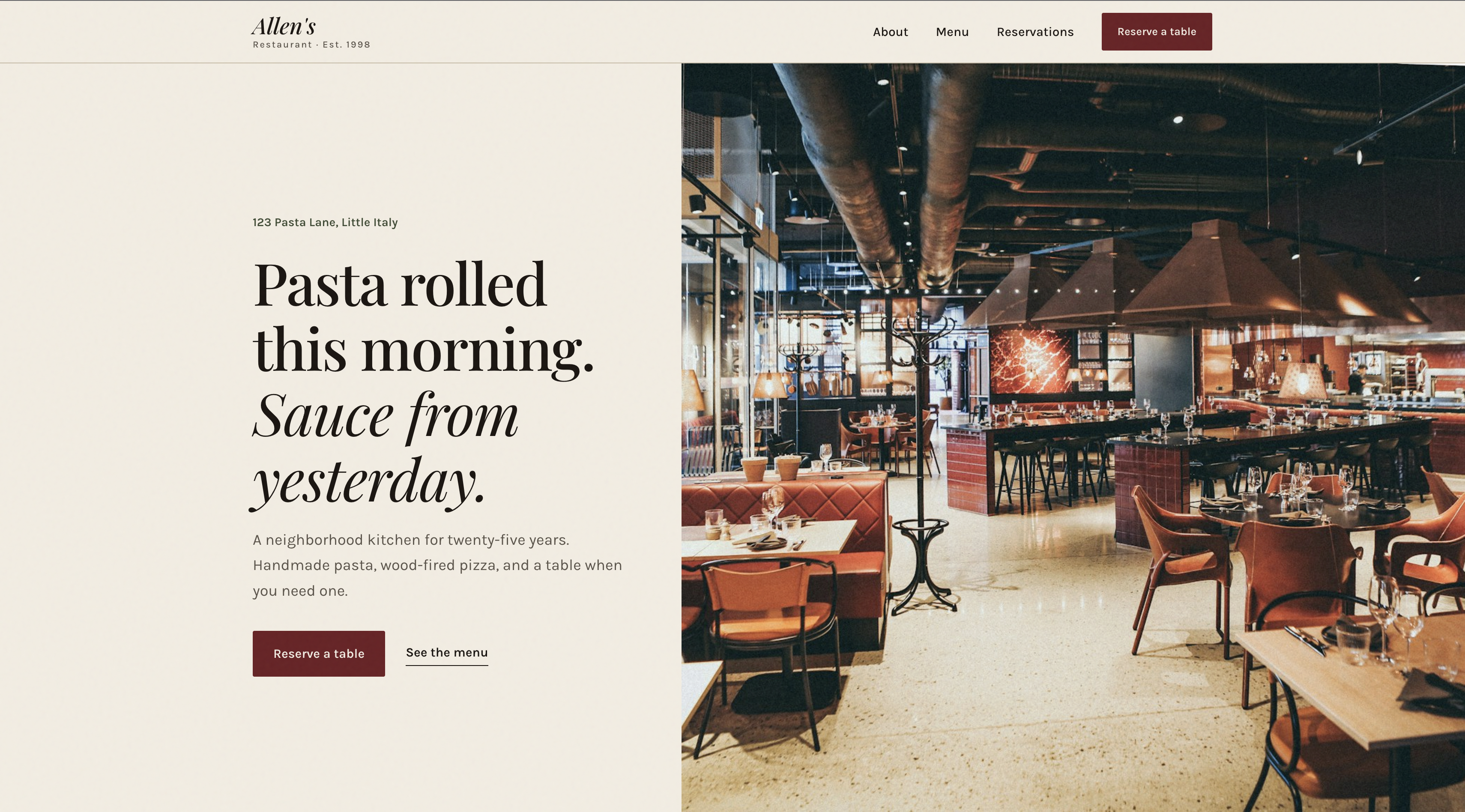
Open index.html in your browser. You should see:
- A full restaurant website with hero, about, features, menu, contact, and footer
- Your live menu pulling data from your Google Sheet
- Search and category filter working on the menu
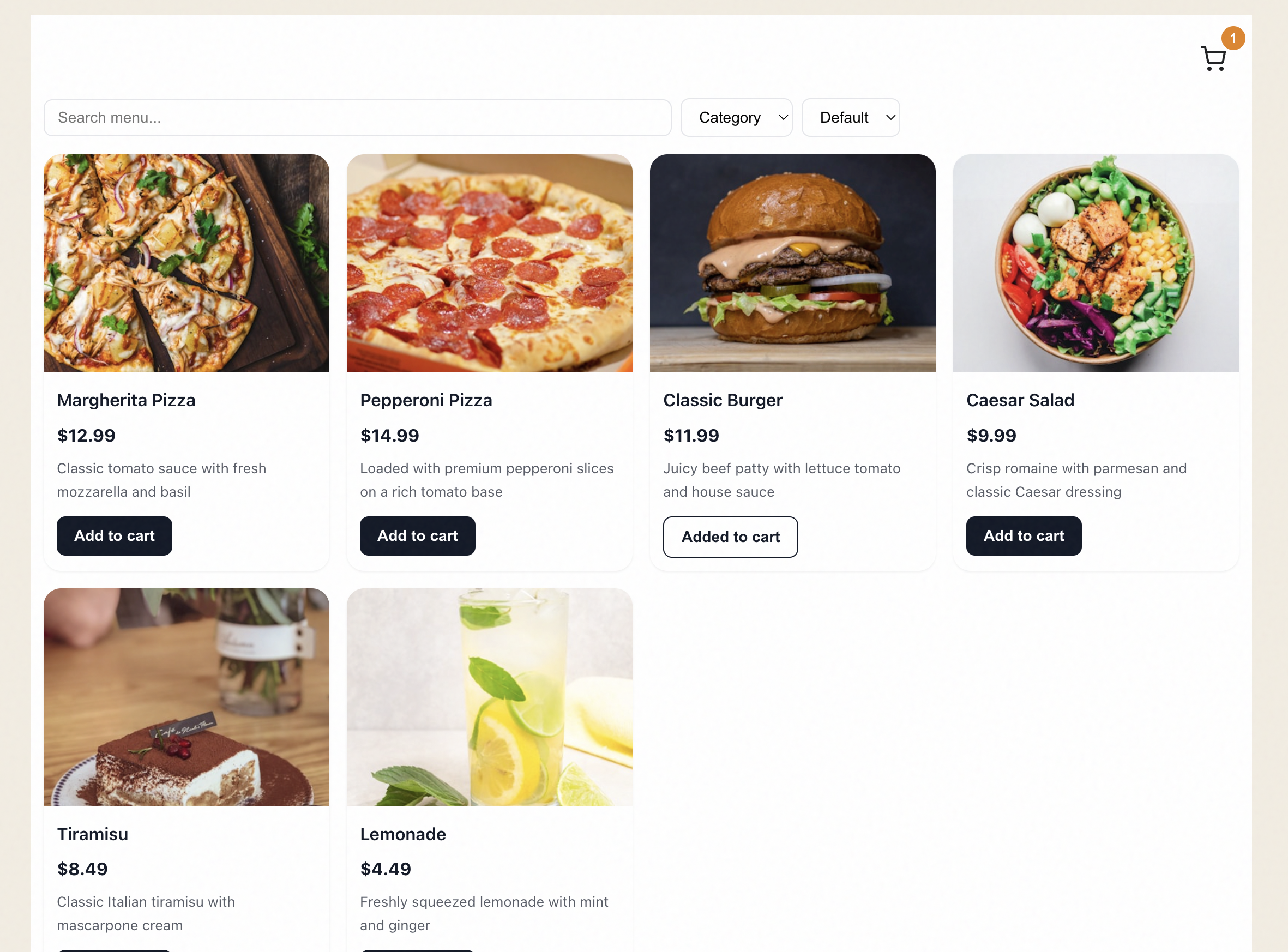
- Add to cart buttons on each menu card
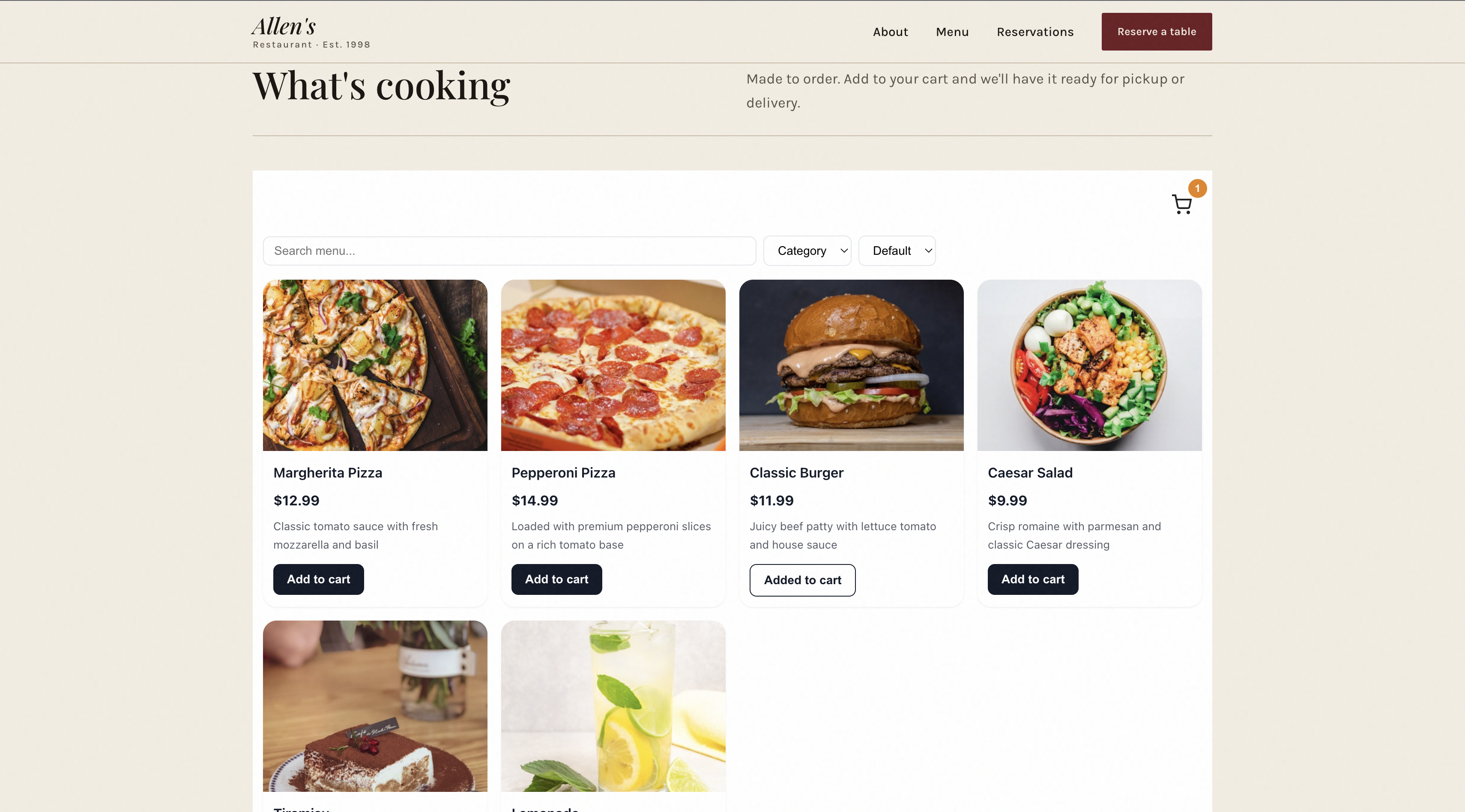
Click the add-to-cart button on a menu item to add it to the cart. A floating cart button will appear at the top right of the page.
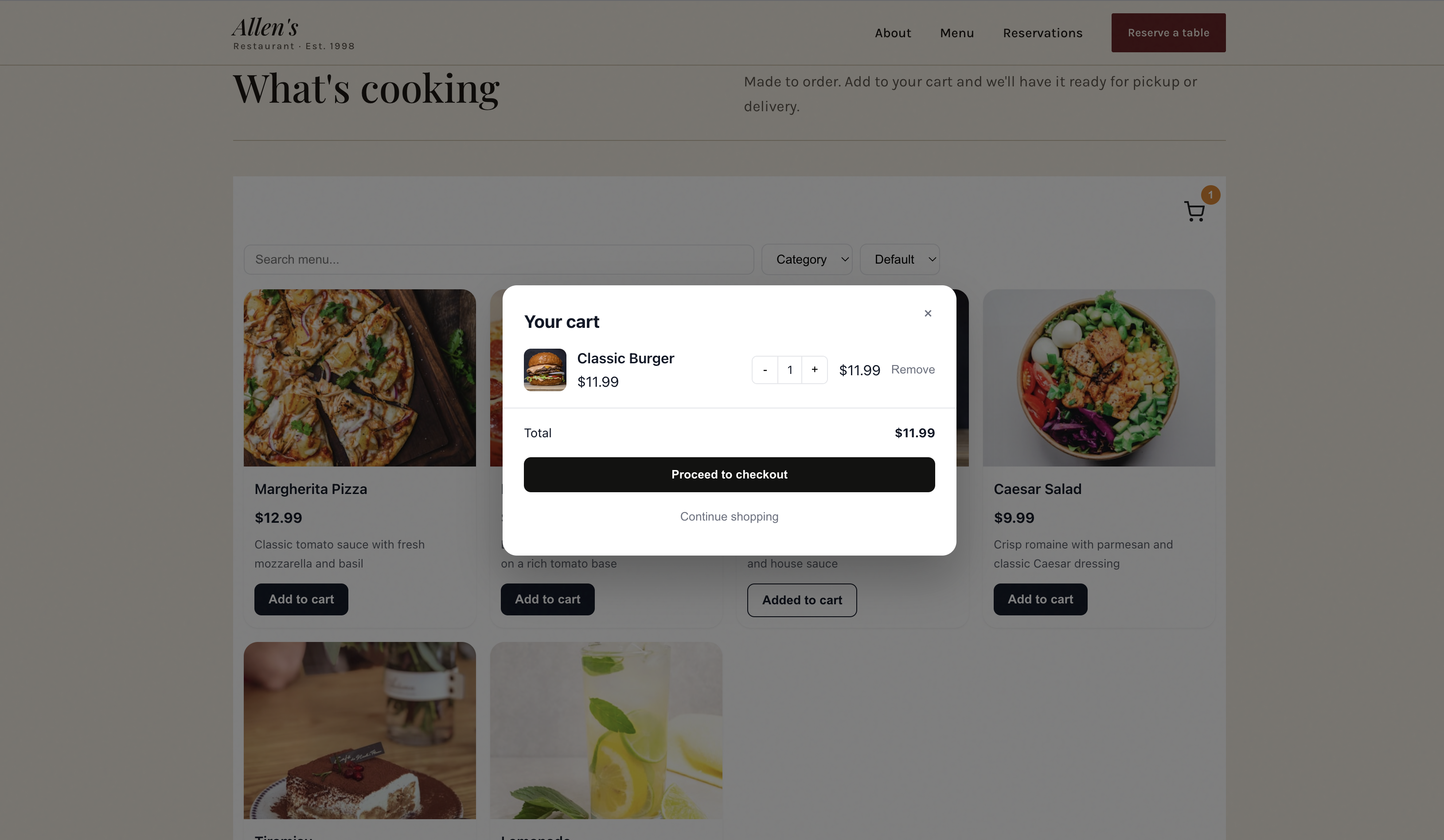
Click the floating cart button to open the cart modal. You will see your selected items, a quantity control, and a checkout button.
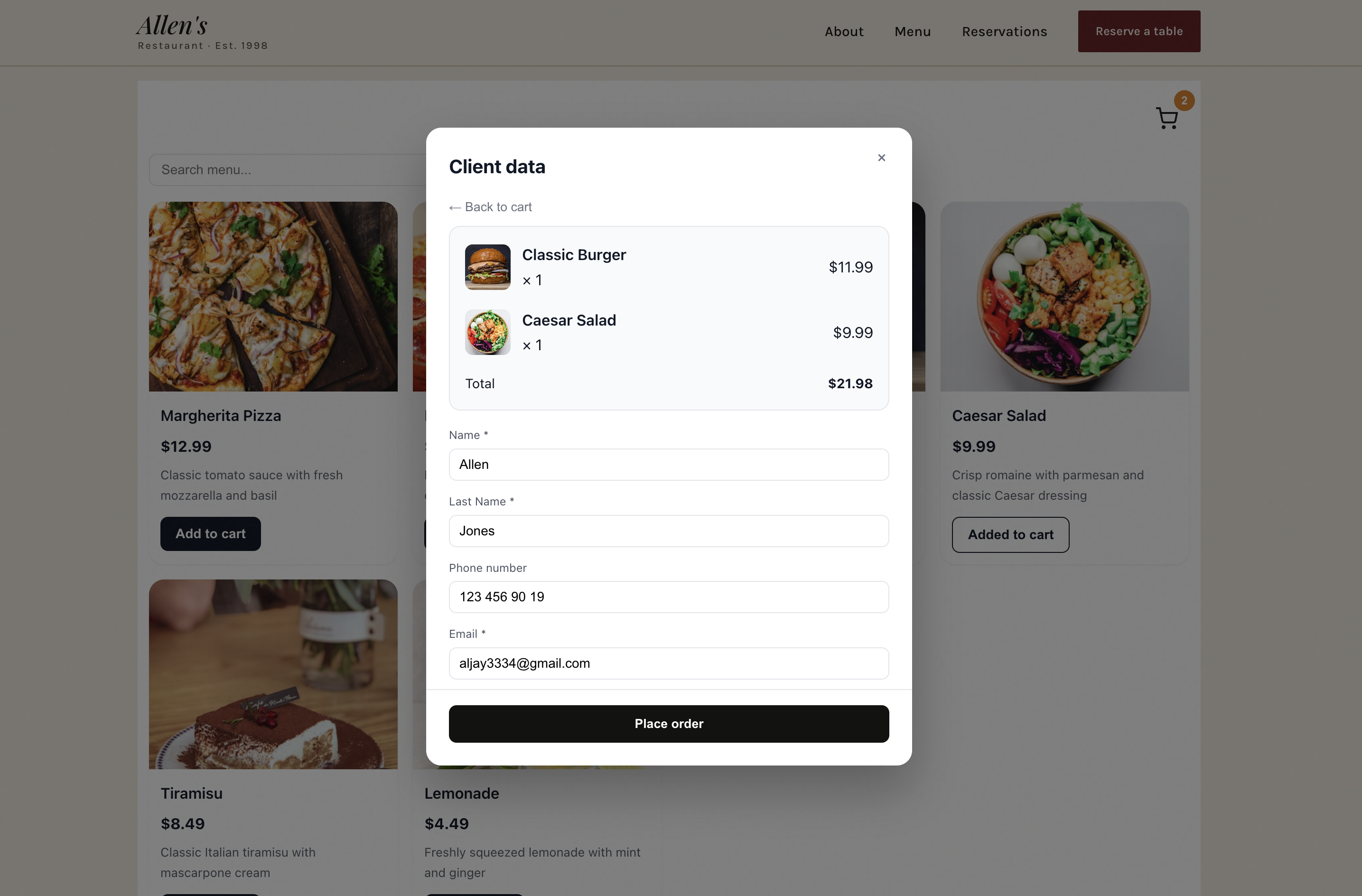
Click Checkout and fill in the order form with a name, email, phone number, and address. Click Place order.
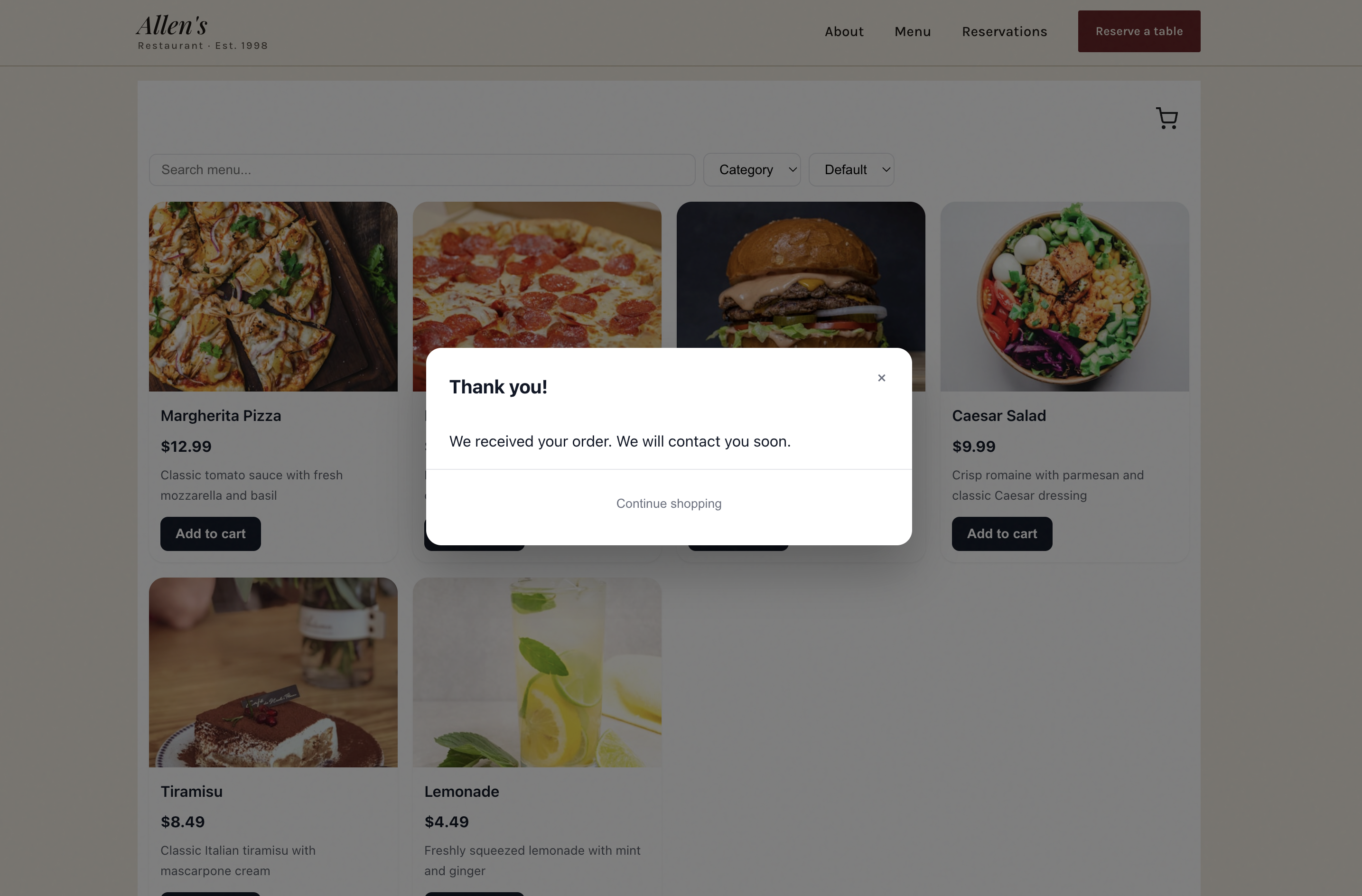
Within seconds, the restaurant owner receives an order notification email with the full order details.
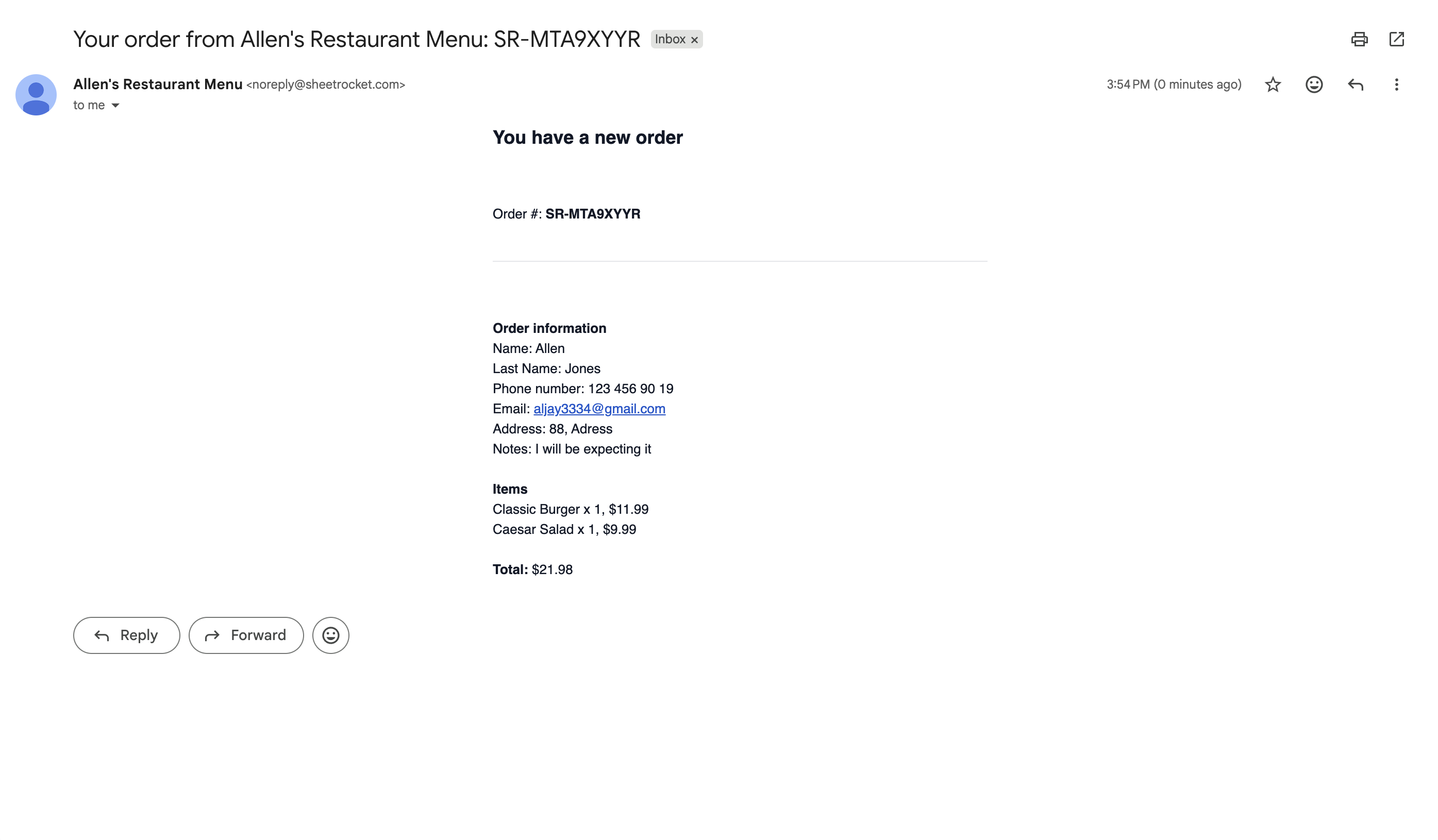
The customer also receives a confirmation email automatically.
Step 11: Test the Live Update
This is the part that makes SheetRocket worth using. Go back to your Google Sheet and change a price. Update "Margherita Pizza" from $12.99 to $13.99.
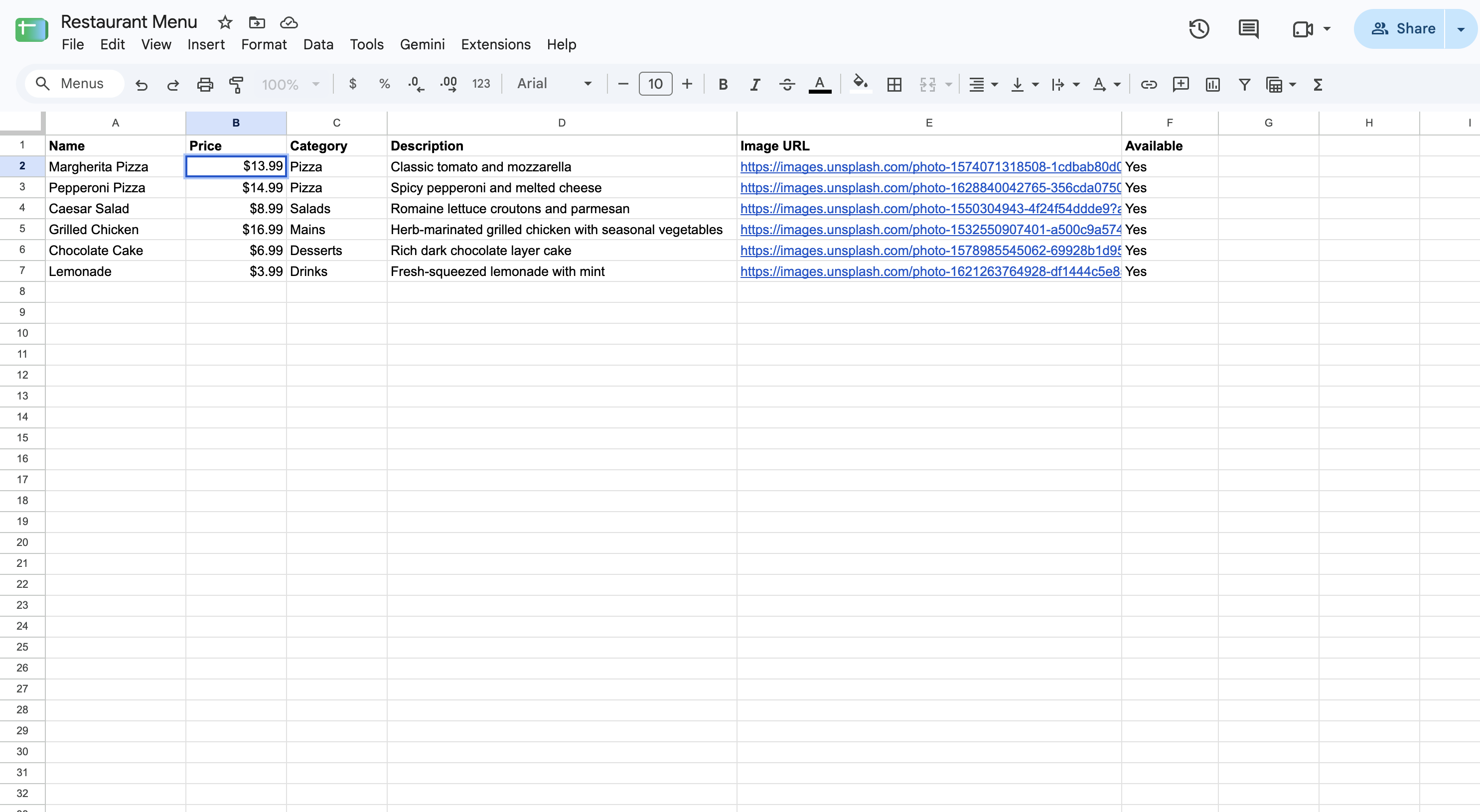
Now refresh your HTML page.
The updated price appears on the menu immediately. No website edit. No redeploy. No developer.
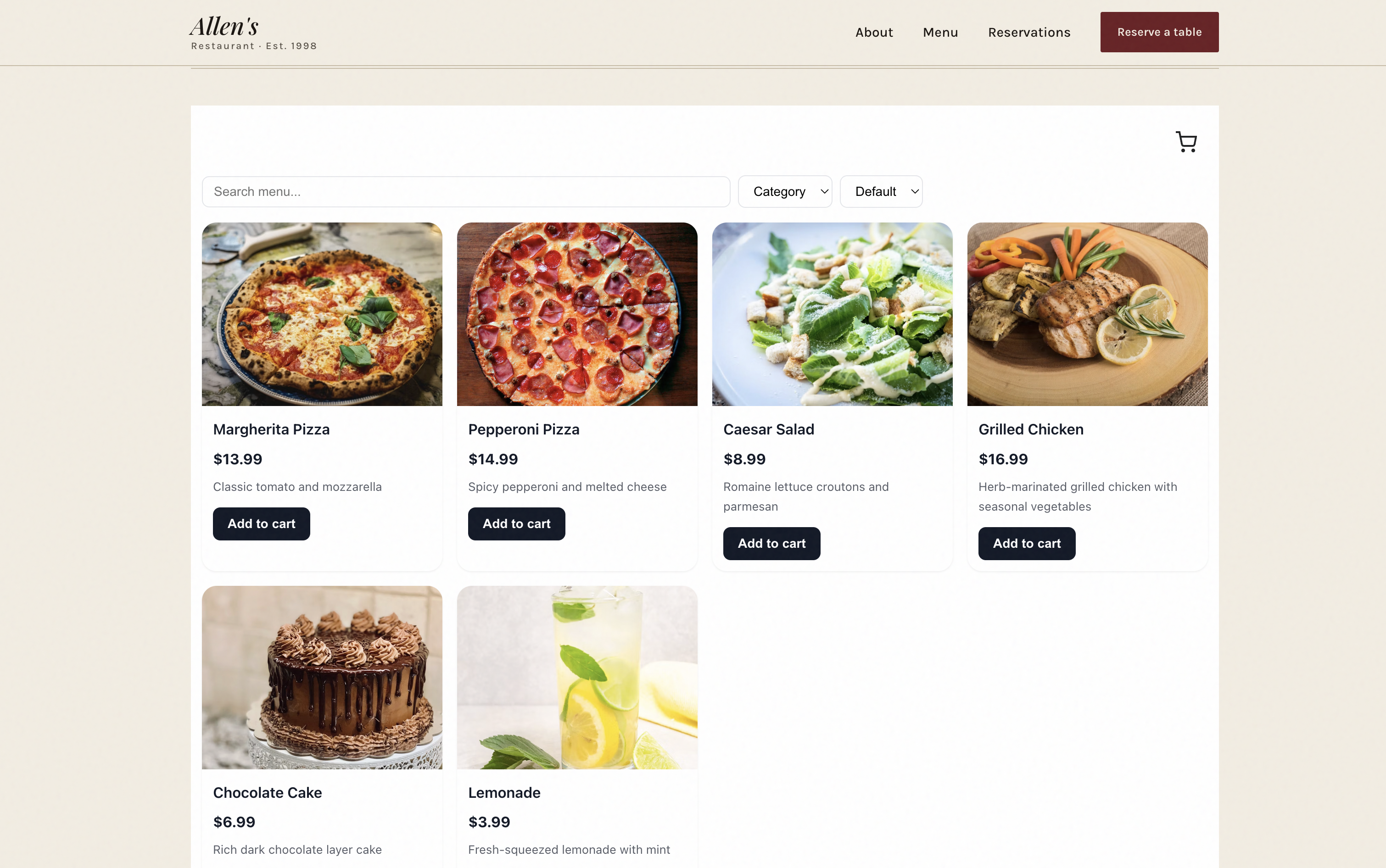
Add a new dish to your Google Sheet by adding a new row at the bottom. Fill in the name, price, category, description, and image URL. Set Available to Yes.
Refresh the page. The new dish appears on the menu.
Remove a dish by deleting the row from your sheet. Refresh the page. It is gone from the menu.
The restaurant owner can manage the entire menu from their Google Sheet without ever touching the website.
Step 12: Deploy the Website
Your HTML file is a static website. It can be hosted for free on any static hosting platform.
GitHub Pages (free):
- Create a new GitHub repository
- Upload your
index.htmlfile - Go to Settings then Pages
- Set the source to the main branch
- Your site is live at
yourusername.github.io/repository-name
Netlify (free):
- Go to netlify.com and create a free account
- Drag your
index.htmlfile onto the Netlify deploy area - Your site is live instantly at a random Netlify URL
- Connect a custom domain in settings
Vercel (free):
- Go to vercel.com and create a free account
- Import your GitHub repository or drag your file
- Your site is live at a Vercel URL
- Connect a custom domain in settings
For a custom domain like mariosrestaurant.com
point your domain's DNS to your hosting provider
and add it in their dashboard.
Live Demo
The menu below is pulling live data from a Google Sheet. Search for dishes, filter by category, and add items to your cart to see the full ordering flow in action.
What the Restaurant Owner Gets
Once this is set up, the restaurant owner has complete control over their menu without touching the website:
Change a price:
  Edit one cell in Google Sheets
  Website updates automatically

Add a new dish:
  Add one row to the sheet
  Dish appears on the website

Remove a dish:
  Delete the row from the sheet
  Dish disappears from the website

Mark something as unavailable:
  Change Available from Yes to No
  Dish shows as unavailable
  or disappears from the menu

Add a daily special:
  Add a row with today's date
  Remove it at end of day
No login to a website builder. No calling a developer. No waiting for someone to make the change. Just edit the spreadsheet.
Taking It Further
Add a second location:
Create a second widget for the second location connected to a different tab in the same Google Sheet. Embed it on a second page or on the same page below the first.
Seasonal menus:
Create a Summer Menu tab and a Winter Menu tab in your sheet. Switch the widget between tabs by changing one setting in SheetRocket.
Daily specials:
Add a Specials tab to your sheet. Create a second widget connected to that tab. Embed it above the main menu with a "Today's specials" heading.
Multiple languages:
Duplicate your sheet tab for each language. Create one widget per language. Show the correct widget based on a language selector in your HTML.
Final Thoughts
A hardcoded restaurant menu is a maintenance problem waiting to happen. Every price change, every seasonal update, every dish removed requires a developer or someone comfortable editing HTML.
A SheetRocket-powered menu puts control back with the restaurant owner. They already know how to use Google Sheets. This tutorial adds a live website connection to the spreadsheet they are already maintaining.
The website is plain HTML. It loads fast, works on any hosting, and costs nothing to deploy. The menu updates automatically the moment the sheet is edited. Online orders arrive by email. No monthly platform fees. No complex integrations.
If you are building this for a restaurant client, SheetRocket's Agency plan at $39/month covers unlimited restaurant sites. Each client manages their own Google Sheet. You manage everything from one SheetRocket account.
Start free at sheetrocket.com. No credit card required.
I am the founder of SheetRocket, a tool that turns Google Sheets into websites, embeddable widgets, and REST APIs. Currently building in public from Ghana.